# Generate API tokens
This topic describes the available types of API tokens and how to generate them for use with the Replicated CLI and Replicated Vendor API v3.
The Replicated CLI also supports creating multiple authentication profiles for managing tokens across different accounts or environments. For more information, see [Authenticate](/reference/replicated-cli-installing#auth) in _Installing the Replicated CLI_.
## About API tokens
The Vendor API v3 is the API that manages applications in the Replicated Vendor Portal. The Replicated CLI is an implementation of the Vendor API v3.
Using the Replicated CLI and Vendor API V3 requires an API token for authorization. Tokens are primarily used for automated customer, channel, and release management. You create tokens in the Vendor Portal.
The following types of tokens are available:
- [Service accounts](#service-accounts)
- [User API tokens](#user-api-tokens)
:::note
Team API tokens are deprecated and cannot be generated. If you are already using team API tokens, Replicated recommends that you migrate to Service Accounts or User API tokens instead because these options provide better granular control over token access.
:::
### Service accounts
Service accounts are assigned a token and an RBAC policy. Users with the proper permissions can create, view, and revoke service accounts.
Service accounts are useful for operations that are not tied to a particular user, such as CI/CD or integrations.
When a service account is removed, its tokens are also invalidated.
### User API tokens
User API tokens are private to the user creating the token. User tokens assume the user's account when used, including any RBAC permissions.
Updates to a user's RBAC role are applied to all of the tokens belonging to that user.
Revoking a user token immediately invalidates that token. When a user account is deleted, its user tokens are also deleted.
## Create a service account
To create a service account:
1. In the Vendor Portal, go to [**Team > Service Accounts**](https://vendor.replicated.com/team/serviceaccounts).
1. Click **Create Service Account**.
1. Edit the fields in the **New Service Account** dialog:
1. For **Nickname**, enter a name for the service account. Service account names must be unique within the team.
1. For **RBAC**, select an RBAC policy to assign to the service account. For more information about how to create custom RBAC policies, see [Configure RBAC Policies](team-management-rbac-configuring).
Note the following:
* Admin users can assign any RBAC policy to a service account. Non-admin users can only assign an RBAC policy with their same level of access to avoid permission elevation.
* After you create a service account, you can't change which RBAC policy is assigned to the service account. If you need to change the RBAC for an existing service account that uses a custom RBAC policy, then you can update the custom RBAC policy itself. Updates to the RBAC policy are automatically applied to the service account's associated token. Or, you can create a new service account and assign it a different RBAC policy.
1. (Optional) Select **Limit to read-only version of above policy** if you selected a custom RBAC policy that has Read/Write permissions but you want to limit this service account to read-only. This option lets you maintain one version of a custom RBAC policy and use it two ways: as read/write and as read-only.
1. Click **Create Service Account**.
1. Copy the service account token and save it in a secure location. The token will not be available to view again.
1. (Recommended) Add the token to a Replicated authentication profile. See [Authenticate](/reference/replicated-cli-installing#auth) in _Installing the Replicated CLI_.
## Generate a user API token
To generate a user API token:
1. Log in to the Vendor Portal and go to the [Account Settings](https://vendor.replicated.com/account-settings) page.
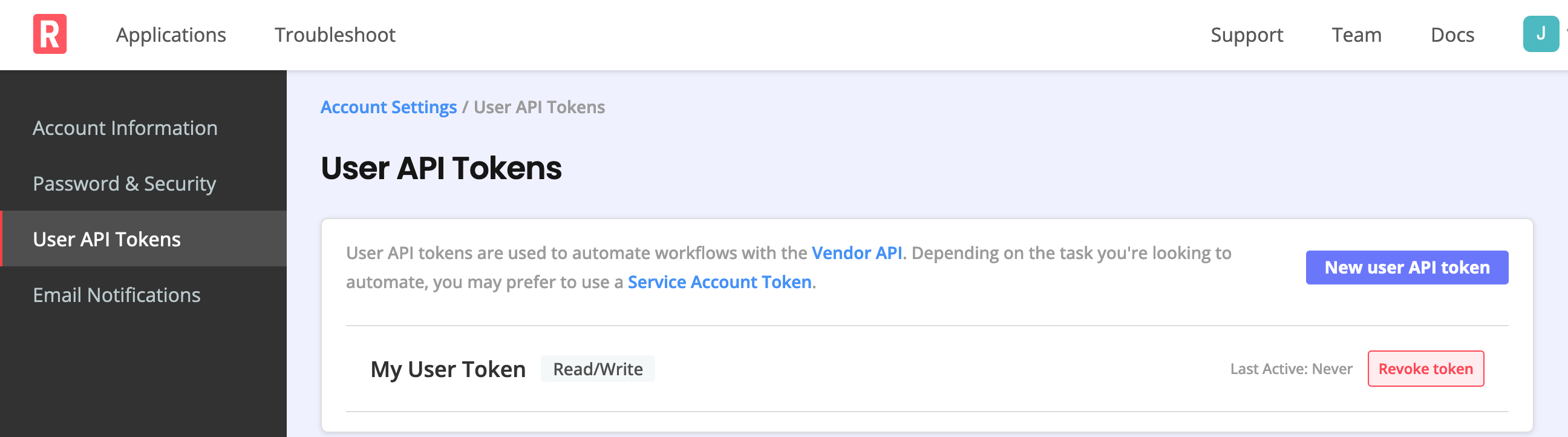
1. Under **User API Tokens**, select **Create a user API token**. If one or more tokens already exist, you can add another by selecting **New user API token**.
 [View a larger version of this image](/images/user-token-list.png)
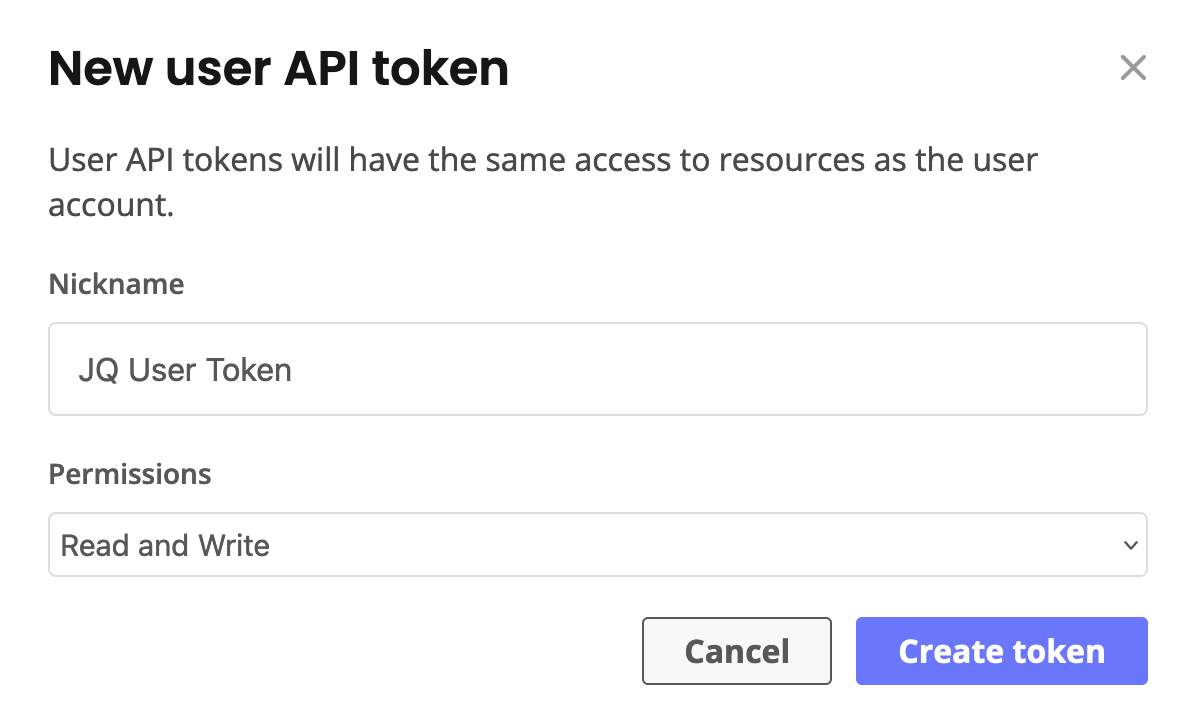
1. In the **New user API token** dialog, enter a name for the token in the **Nickname** field. Names for user API tokens must be unique per user.
[View a larger version of this image](/images/user-token-list.png)
1. In the **New user API token** dialog, enter a name for the token in the **Nickname** field. Names for user API tokens must be unique per user.
 [View a larger version of this image](/images/user-token-create.png)
1. Select the required permissions or use the default **Read and Write** permissions. Then select **Create token**.
:::note
The token must have `Read and Write` access to create new releases.
:::
1. Copy the user API token that displays and save it in a secure location. The token will not be available to view again.
1. (Recommended) Add the token to a Replicated authentication profile. See [Authenticate](/reference/replicated-cli-installing#auth) in _Installing the Replicated CLI_.
:::note
To revoke a token, select **Revoke token** for the token that you want to delete.
:::
[View a larger version of this image](/images/user-token-create.png)
1. Select the required permissions or use the default **Read and Write** permissions. Then select **Create token**.
:::note
The token must have `Read and Write` access to create new releases.
:::
1. Copy the user API token that displays and save it in a secure location. The token will not be available to view again.
1. (Recommended) Add the token to a Replicated authentication profile. See [Authenticate](/reference/replicated-cli-installing#auth) in _Installing the Replicated CLI_.
:::note
To revoke a token, select **Revoke token** for the token that you want to delete.
:::