# Config
The Replicated Config custom resource defines the application-specific configuration fields that you want to expose to your end customers. For example, if you let your customers bring their own external database, you could expose config fields for the database host, port, username, and password.
During application installation or upgrade, your end customers provide values for each config field either through the UI or with the [ConfigValues](/reference/custom-resource-configvalues) custom resource (for headless installations).
## Example
```yaml
apiVersion: kots.io/v1beta1
kind: Config
metadata:
name: outline-wiki-config
spec:
groups:
- name: general
title: General
items:
- name: hostname
title: Hostname
help_text: |
The hostname customers will use to access Outline (e.g. outline.example.com).
type: text
required: true
- name: database
title: Database
items:
- name: postgres_type
title: PostgreSQL
type: select_one
default: embedded_postgres
items:
- name: embedded_postgres
title: Embedded PostgreSQL
- name: external_postgres
title: External PostgreSQL
- name: embedded_postgres_password
title: Embedded PostgreSQL Password
type: password
value: 'repl{{ RandomString 32 }}'
when: 'repl{{ ConfigOptionEquals "postgres_type" "embedded_postgres" }}'
help_text: |
Auto-generated on first install. Leave as-is unless you need a specific password.
- name: external_postgres_host
title: Host
type: text
when: 'repl{{ ConfigOptionEquals "postgres_type" "external_postgres" }}'
required: true
- name: external_postgres_port
title: Port
type: text
default: "5432"
when: 'repl{{ ConfigOptionEquals "postgres_type" "external_postgres" }}'
- name: external_postgres_database
title: Database Name
type: text
default: outline
when: 'repl{{ ConfigOptionEquals "postgres_type" "external_postgres" }}'
- name: external_postgres_username
title: Username
type: text
default: outline
when: 'repl{{ ConfigOptionEquals "postgres_type" "external_postgres" }}'
- name: external_postgres_password
title: Password
type: password
when: 'repl{{ ConfigOptionEquals "postgres_type" "external_postgres" }}'
required: true
```
The following images show how this Config custom resource renders in the Embedded Cluster v3 installation wizard:

[View a larger version of this image](/images/config-screen-example.png)

[View a larger version of this image](/images/config-screen-example-embedded-postgres.png)
## Group properties
Groups have a `name`, `title`, `description` and an array of `items`.
### `description`
Descriptive help text for the group that displays on the config screen. Supports markdown formatting. To provide help text for individual items on the Config page, use the item `help_text` property. See [help_text](#help_text).
```yaml
spec:
groups:
- name: example_group
title: First Group
# Provide a description of the input fields in the group
description: Select whether or not to enable HTTP.
items:
- name: http_enabled
title: HTTP Enabled
type: bool
default: "0"
```
### `name`
A unique identifier for the group.
```yaml
spec:
groups:
# The name must be unique
- name: example_group
title: First Group
items:
- name: http_enabled
title: HTTP Enabled
type: bool
default: "0"
```
### `title`
The title of the group that displays on the config screen.
```yaml
spec:
groups:
- name: example_group
# First Group is the heading that appears on the Config page
title: First Group
items:
- name: http_enabled
title: HTTP Enabled
type: bool
default: "0"
```
### `when`
The `when` property denotes groups that display on the config screen only when a condition evaluates to true. When the condition evaluates to false, the group does not display.
This lets you conditionally show or hide fields so your end customers only see the options that are relevant to them.
You can use Go template functions to create conditional statements. Replicated provides a set of Go template functions that you can use to evaluate conditions like the user's environment, their license entitlements, and their previous configuration choices. For more information, see [About Replicated Template Functions](/reference/template-functions-about).
:::note
`when` is a property of both groups and items. See [Item Properties > `when`](/reference/custom-resource-config#when-item).
:::
#### Requirements and limitations
* The `when` property accepts the following types of values:
* Booleans
* Strings that match "true", "True", "false", or "False"
* For the `when` property to evaluate to true, the values compared in the conditional statement must match exactly without quotes
#### Example
```yaml
apiVersion: kots.io/v1beta1
kind: Config
metadata:
name: outline-wiki-config
spec:
groups:
- name: database
title: Database
items:
- name: postgres_type
title: PostgreSQL
type: select_one
default: embedded_postgres
items:
- name: embedded_postgres
title: Embedded PostgreSQL
- name: external_postgres
title: External PostgreSQL
- name: embedded_postgres_password
title: Embedded PostgreSQL Password
type: password
value: 'repl{{ RandomString 32 }}'
when: 'repl{{ ConfigOptionEquals "postgres_type" "embedded_postgres" }}'
help_text: |
Auto-generated on first install. Leave as-is unless you need a specific password.
- name: external_postgres_host
title: Host
type: text
when: 'repl{{ ConfigOptionEquals "postgres_type" "external_postgres" }}'
required: true
- name: external_postgres_port
title: Port
type: text
default: "5432"
when: 'repl{{ ConfigOptionEquals "postgres_type" "external_postgres" }}'
- name: external_postgres_database
title: Database Name
type: text
default: outline
when: 'repl{{ ConfigOptionEquals "postgres_type" "external_postgres" }}'
- name: external_postgres_username
title: Username
type: text
default: outline
when: 'repl{{ ConfigOptionEquals "postgres_type" "external_postgres" }}'
- name: external_postgres_password
title: Password
type: password
when: 'repl{{ ConfigOptionEquals "postgres_type" "external_postgres" }}'
required: true
```
### `items`
Each group contains an array of items that map to input fields on the config screen. All items have `name`, `title`, and `type` properties and belong to a single group.
For more information, see [Item Properties](#item-properties) and [Item Types](#item-types).
:::note
If all items in a group hide because their `when` conditions evaluate to false, the group also hides, including its `title` and `description`. To ensure the group remains visible and shows messaging to the user, include a `label` item in the group without a `when` condition.
:::
## Item types
The section describes each of the item types:
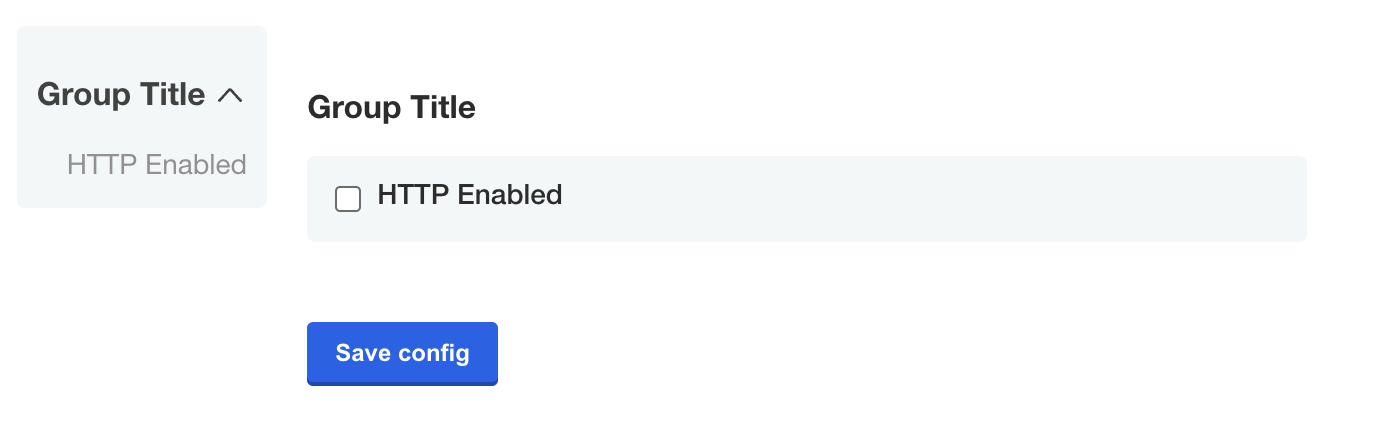
- `bool`
- `dropdown`
- `file`
- `heading`
- `label`
- `password`
- `radio`
- `select_one` (Deprecated)
- `text`
- `textarea`
### `bool`
The `bool` input type should use a "0" or "1" to set the value
```yaml
- name: group_title
title: Group Title
items:
- name: http_enabled
title: HTTP Enabled
type: bool
default: "0"
```
[View a larger version of this image](/images/config-screen-bool.png)
### `dropdown`
> Introduced in KOTS v1.114.0
The `dropdown` item type includes one or more nested items that display in a dropdown on the config screen. Dropdowns are especially useful for displaying long lists of options. You can also use the [`radio`](#radio) item type to display radio buttons for items with shorter lists of options.
To set a default value for `dropdown` items, set the `default` field to the name of the target nested item.
```yaml
spec:
groups:
- name: example_settings
title: My Example Config
items:
- name: version
title: Version
default: version_latest
type: dropdown
items:
- name: version_latest
title: latest
- name: version_123
title: 1.2.3
- name: version_124
title: 1.2.4
- name: version_125
title: 1.2.5
```
[View a larger version of this image](/images/config-screen-dropdown.png)
[View a larger version of this image](/images/config-screen-dropdown-open.png)
### `file`
A `file` is a special type of form field that renders an [``](https://www.w3schools.com/tags/tag_input.asp) HTML element.
The form field captures only the file contents, not the filename.
See the [`ConfigOptionData`](template-functions-config-context#configoptiondata) template function for examples on how to use the file contents in your application.
```yaml
- name: certs
title: TLS Configuration
items:
- name: tls_private_key_file
title: Private Key
type: file
- name: tls_certificate_file
title: Certificate
type: file
```
[View a larger version of this image](/images/config-screen-file.png)
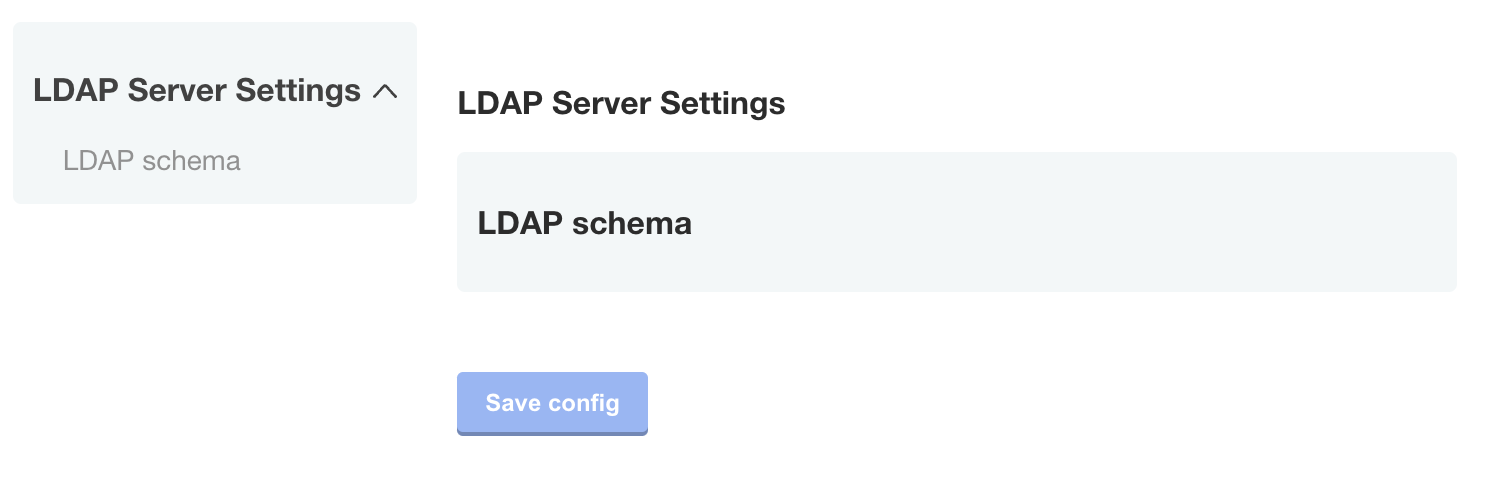
### `heading`
The `heading` type allows you to display a group heading as a sub-element within a group.
This is useful when you would like to use a config group to group items together, but still separate the items visually.
```yaml
- name: ldap_settings
title: LDAP Server Settings
items:
...
- name: ldap_schema
type: heading
title: LDAP schema
...
```
[View a larger versio of this image](/images/config-screen-heading.png)
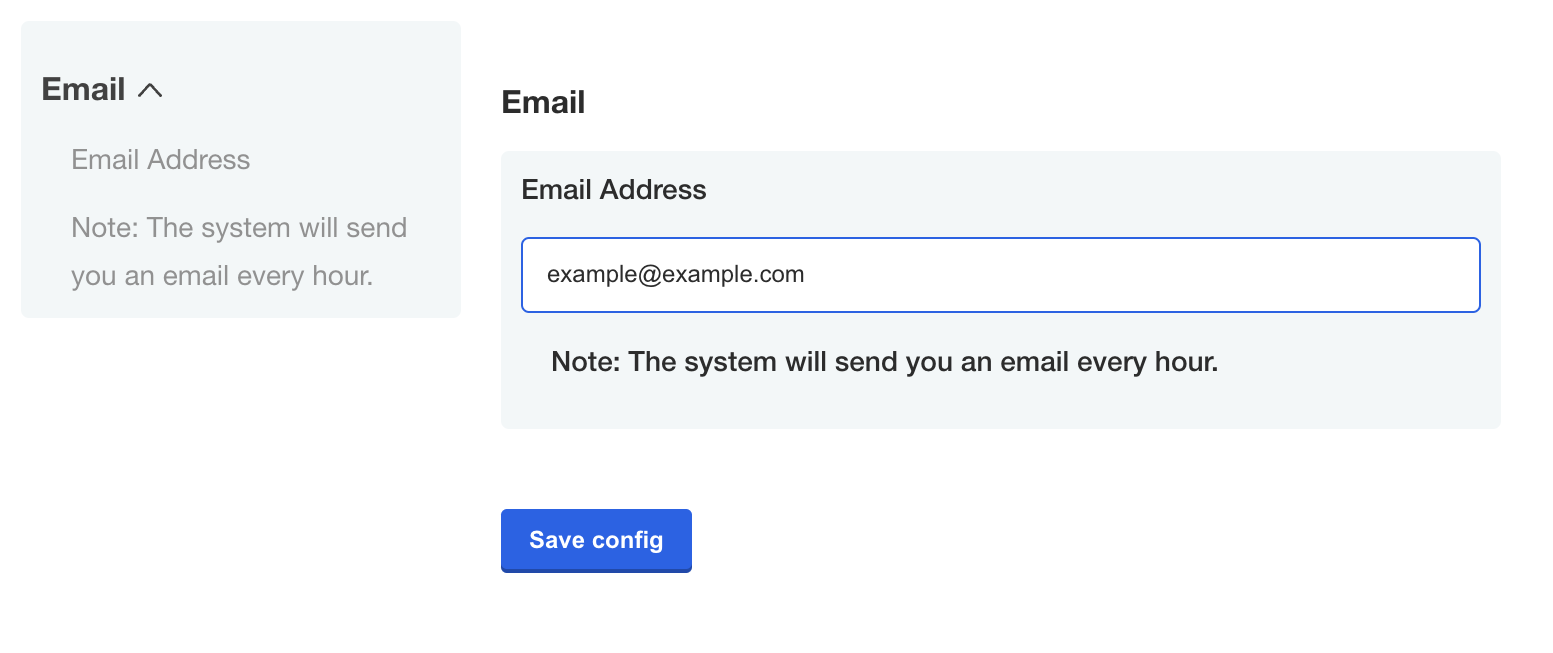
### `label`
The `label` type allows you to display an input label.
```yaml
- name: email
title: Email
items:
- name: email-address
title: Email Address
type: text
- name: description
type: label
title: "Note: The system will send you an email every hour."
```
[View a larger version of this image](/images/config-screen-label.png)
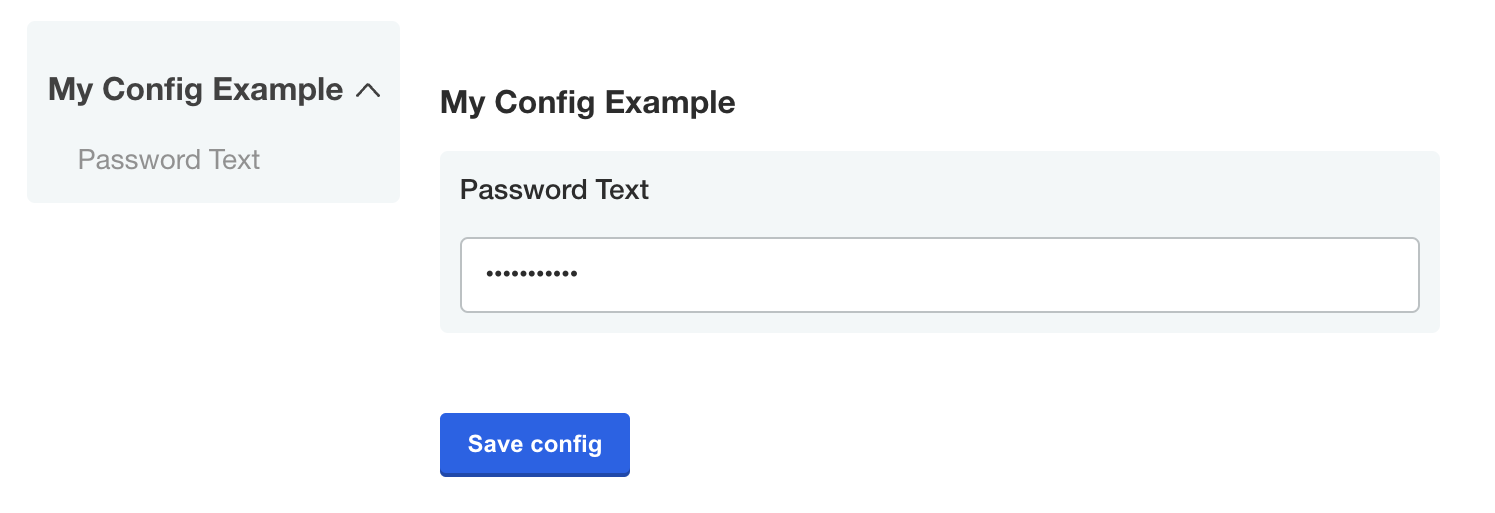
### `password`
The `password` type is a text field that hides the character input.
```yaml
- name: password_text
title: Password Text
type: password
value: '{{repl RandomString 10}}'
```
[View a larger version of this image](/images/config-screen-password.png)
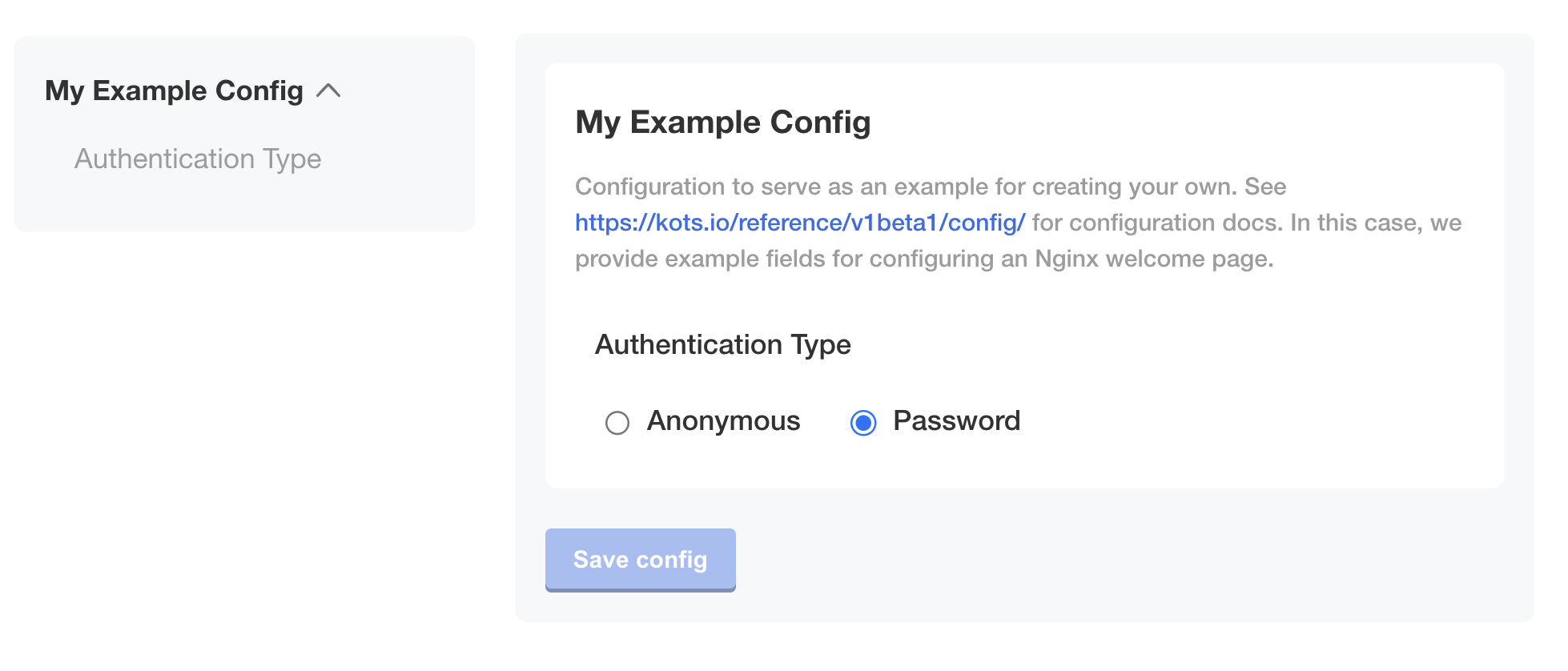
### `radio`
> Introduced in KOTS v1.114.0
The `radio` item type includes one or more nested items that display as radio buttons on the config screen. Radio buttons are especially useful for displaying short lists of options. You can also use the [`dropdown`](#dropdown) item type for items with longer lists of options.
To set a default value for `radio` items, set the `default` field to the name of the target nested item.
```yaml
spec:
groups:
- name: example_settings
title: My Example Config
items:
- name: authentication_type
title: Authentication Type
default: authentication_type_anonymous
type: radio
items:
- name: authentication_type_anonymous
title: Anonymous
- name: authentication_type_password
title: Password
```
### `select_one` (Deprecated)
:::important
The `select_one` item type is deprecated. Use [`radio`](#radio) instead.
:::
`select_one` items must contain nested items. The nested items display as radio buttons on the config screen.
Use the `name` field of a `select_one` item with Replicated template functions in the Config context (such as ConfigOption or ConfigOptionEquals) to return the user-selected option.
For example, if the user selects the **Password** option for the `select_one` item in the following example, then the template function `'{{repl ConfigOption "authentication_type"}}'` returns `authentication_type_password`. For more information about working with template functions in the Config context, see [Config Context](/reference/template-functions-config-context).
```yaml
spec:
groups:
- name: example_settings
title: My Example Config
description: Configuration to serve as an example for creating your own.
items:
- name: authentication_type
title: Authentication Type
default: authentication_type_anonymous
type: select_one
items:
- name: authentication_type_anonymous
title: Anonymous
- name: authentication_type_password
title: Password
```
### `text`
A `text` input field allows users to enter a string value.
Optionally, all additional properties are available for this input type.
```yaml
- name: example_text_input
title: Example Text Input
type: text
```
:::important
Do not store secrets or passwords in `text` items because they are not encrypted or masked and can be accessed. Instead, use [`password`](#password) items.
:::
### `textarea`
A `textarea` items creates a multi-line text input for when users have to enter a sizeable amount of text.
```yaml
- name: custom_key
title: Set your secret key for your app
description: Paste in your Custom Key
items:
- name: key
title: Key
type: textarea
- name: hostname
title: Hostname
type: text
```
## Item properties
Items have a `name`, `title`, `type`, and other optional properties.
### `affix`
Affix items `left` or `right` to display them on the same line on the config screen.
Specify the `affix` field to all of the items in a particular group to preserve the line spacing and prevent the appearance of crowded text.
#### Example
```yaml
groups:
- name: example_settings
title: My Example Config
description: Configuration to serve as an example for creating your own.
items:
- name: username
title: Username
type: text
required: true
affix: left
- name: password
title: Password
type: password
required: true
affix: right
```
### `default`
Defines the default value for the config item. If the user does not provide a value for the item, the `default` value takes effect.
If the `default` value is not associated with a `password` type config item, then it appears as placeholder text on the config screen.
The installer reevaluates Go template functions in the `default` property each time the user changes their configuration settings.
#### Example
```yaml
- name: custom_key
title: Set your secret key for your app
description: Paste in your Custom Key
items:
- name: key
title: Key
type: text
value: ""
default: change me
```
[View a larger version of this image](/images/config-default.png)
### `help_text`
Displays a helpful message under the `title` for the config item on the config screen.
The property supports markdown syntax. For more information, see [Basic writing and formatting syntax](https://guides.github.com/features/mastering-markdown/) in the GitHub Docs.
#### Example
```yaml
- name: http_settings
title: HTTP Settings
items:
- name: http_enabled
title: HTTP Enabled
help_text: Check to enable the HTTP listener
type: bool
```
[View a larger version of this image](/images/config-help-text.png)
### `hidden`
Hidden items are not visible on the config screen.
When you assign a template function that generates a value to a `value` property, you can use the `readonly` and `hidden` properties to define whether or not the generated value is ephemeral or persistent between changes to the configuration settings for the application. For more information, see [RandomString](template-functions-static-context#randomstring) in _Static Context_.
#### Limitation
The `hidden` property doesn't support Go templating.
#### Example
```yaml
- name: secret_key
title: Secret Key
type: password
hidden: true
value: "{{repl RandomString 40}}"
```
### `name` (Required)
A unique identifier for the config item. Item names must be unique both within the group and across all groups. The item `name` is not displayed on the config screen.
Use the item `name` with Replicated template functions in the Config context (such as ConfigOption or ConfigOptionEquals) to return the value of the item. For more information, see [Config Context](/reference/template-functions-config-context).
#### Example
```yaml
- name: http_settings
title: HTTP Settings
items:
- name: http_enabled
title: HTTP Enabled
type: bool
```
### `readonly`
Readonly items display on the config screen and users cannot edit their value.
When you assign a template function that generates a value to a `value` property, you can use the `readonly` and `hidden` properties to define whether or not the generated value is ephemeral or persistent between changes to the configuration settings for the application. For more information, see [RandomString](template-functions-static-context#randomstring) in _Static Context_.
#### Limitation
The `readonly` property doesn't support Go templating.
#### Example
```yaml
- name: key
title: Key
type: text
value: ""
default: change me
- name: unique_key
title: Unique Key
type: text
value: "{{repl RandomString 20}}"
readonly: true
```
[View a larger version of this image](/images/config-readonly.png)
### `recommended`
Displays a Recommended tag for the config item on the config screen.
#### Limitations
* The `recommended` property doesn't support Go templating.
* Embedded Cluster v3 doesn't support the `recommended` property
#### Example
```yaml
- name: recommended_field
title: My recommended field
type: bool
default: "0"
recommended: true
```
[View a larger version of this image](/images/config-recommended-item.png)
### `required`
Displays a Required tag for the config item on the config screen. A required item prevents the application from starting until it has a value.
#### Limitation
The `required` property doesn't support Go templating.
#### Example
```yaml
- name: custom_key
title: Set your secret key for your app
description: Paste in your Custom Key
items:
- name: key
title: Key
type: text
value: ""
default: change me
required: true
```
[View a larger version of this image](/images/config-required-item.png)
### `title` (Required)
The title of the config item that displays on the config screen.
#### Example
```yaml
- name: http_settings
title: HTTP Settings
items:
- name: http_enabled
title: HTTP Enabled
help_text: Check to enable the HTTP listener
type: bool
```
[View a larger version of this image](/images/config-help-text.png)
### `type` (Required)
Each item has a `type` property that defines the type of user input accepted by the field.
The `type` property supports the following values:
For information about each type, see [Item Types](#item-types).
#### Limitation
The `type` property doesn't support Go templating.
#### Example
```yaml
- name: group_title
title: Group Title
items:
- name: http_enabled
title: HTTP Enabled
type: bool
default: "0"
```
[View a larger version of this image](/images/config-screen-bool.png)
### `value`
Defines the value of the config item. Data that you add to `value` appears as the HTML input value for the config item on the config screen.
If the config item is not readonly, then the data that you add to `value` is overwritten by any user input for the item. If the item is readonly, then the data that you add to `value` cannot be overwritten.
When you assign a template function that generates a value to a `value` property, you can use the `readonly` and `hidden` properties to define whether or not the generated value is ephemeral or persistent between changes to the configuration settings for the application. For more information, see [RandomString](template-functions-static-context#randomstring) in _Static Context_.
#### Example
```yaml
- name: custom_key
title: Set your secret key for your app
description: Paste in your Custom Key
items:
- name: key
title: Key
type: text
value: "{{repl RandomString 20}}"
```
[View a larger version of this image](/images/config-value-randomstring.png)
### `when` {#when-item}
The `when` property denotes items that display on the config screen only when a condition evaluates to true. When the condition evaluates to false, the item does not display.
This lets you conditionally show or hide fields so your end customers only see the options that are relevant to them.
You can use Go template functions to create conditional statements. Replicated provides a set of Go template functions that you can use to evaluate conditions like the user's environment, their license entitlements, and their previous configuration choices. For more information, see [About Replicated Template Functions](/reference/template-functions-about).
:::note
`when` is a property of both groups and items. See [Group Properties > `when`](/reference/custom-resource-config#when) above.
:::
#### Requirements
* The `when` property accepts the following types of values:
* Booleans
* Strings that match "true", "True", "false", or "False"
* For the `when` property to evaluate to true, the values compared in the conditional statement must match exactly without quotes
- Do not apply `when` to items nested under a `radio`, `dropdown`, or `select_one` item. To conditionally show or hide `radio`, `dropdown`, or `select_one` items, apply the `when` property to the item itself.
#### Example
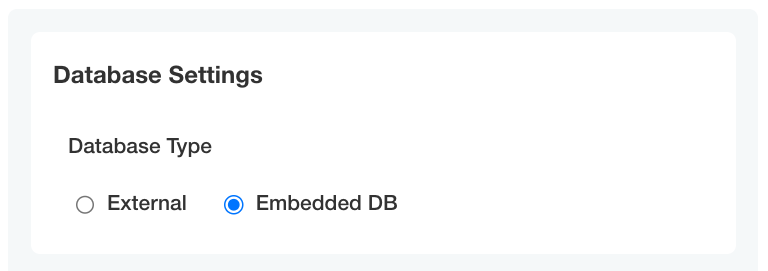
Display the `database_host` and `database_password` items only when the user selects `external` for the `db_type` item:
```yaml
- name: database_settings_group
title: Database Settings
items:
- name: db_type
title: Database Type
type: radio
default: external
items:
- name: external
title: External
- name: embedded
title: Embedded DB
- name: database_host
title: Database Hostname
type: text
when: repl{{ (ConfigOptionEquals "db_type" "external")}}
- name: database_password
title: Database Password
type: password
when: repl{{ (ConfigOptionEquals "db_type" "external")}}
```
[View a larger version of this image](/images/config-when-enabled.png)
[View a larger version of this image](/images/config-when-disabled.png)
### `validation`
Use the `validation` property to validate an item's value and specify custom validation rules that determine whether the value is valid.
You can use regex to validate whether an item's value matches the provided regular expression `pattern`. The regex pattern should be of the [RE2 regular expression](https://github.com/google/re2/wiki/Syntax) type and can validate the `text`, `textarea`, `password`, and `file` field types.
Based on specified validation rules, the item is validated and a validation message is returned if the validation rule is not satisfied. A default message is returned if there is an empty validation message.
The validation rules are as follows:
- An item is validated only when its value is not empty.
- Items of types `text`, `textarea`, `password`, and `file` are validated, but `repeatable` items are not validated.
- If an item is marked as `hidden` or if its `when` condition is set to `false`, the item is not validated.
- If a group `when` condition is set to `false`, the items in the group are not validated.
#### Limitation
The `validation` property doesn't support Go templating.
#### Example
Validates and returns if `password` value is not matching the regex.
The `jwt_token` file content is only validated if the file is uploaded since it is optional.
```
- name: smtp-settings
title: SMTP Settings
- name: smtp_password
title: SMTP Password
type: password
required: true
validation:
regex:
pattern: ^(?:[\w@#$%^&+=!*()_\-{}[\]:;"'<>,.?\/|]){8,16}$
message: The password must be between 8 and 16 characters long and can contain a combination of uppercase letters, lowercase letters, digits, and special characters.
- name: jwt_token
title: JWT token
type: file
validation:
regex:
pattern: ^[A-Za-z0-9-_]+\\.[A-Za-z0-9-_]+\\.[A-Za-z0-9-_]*$
message: Upload a file with valid JWT token.
```
[View a larger version of this image](/images/regex_password_validation_error.png)
[View a larger version of this image](/images/regex_file_validation_error.png)
## Repeatable Items
A repeatable config item copies a YAML array entry or YAML document for as many values as are provided. Any number of values can be added to a repeatable item to generate additional copies.
To make an item repeatable, set `repeatable` to true:
```yaml
- name: ports_group
items:
- name: serviceport
title: Service Port
type: text
repeatable: true
```
Repeatable items do not use the `default` or `value` fields, but instead a `valuesByGroup` field.
`valuesByGroup` must have an entry for the parent Config Group name, with all of the default `key:value` pairs nested in the group. The repeatable item requires at least one default entry:
```yaml
valuesByGroup:
ports_group:
port-default-1: "80"
```
### Limitations
* Repeatable items work only for text, textarea, and file types.
* Repeatable item names must only consist of lower case alphanumeric characters.
* Repeatable items are only supported for Kubernetes manifests, not Helm charts.
### Template targets
Repeatable items require that you provide at least one `template`. The `template` defines a YAML target in the manifest to duplicate for each repeatable item.
Required fields for a template target are `apiVersion`, `kind`, and `name`.
`namespace` is an optional template target field to match a YAML document's `metadata.namespace` property when the same filename appears in multiple namespaces.
The installer duplicates the entire YAML node at the target, including nested fields.
The `yamlPath` field of the `template` must denote index position for arrays using square brackets. For example, `spec.ports[0]` selects the first port entry for duplication. The installer appends all duplicate YAML to the final array in the `yamlPath`.
`yamlPath` must end with an array.
**Example:**
```yaml
templates:
- apiVersion: v1
kind: Service
name: my-service
namespace: my-app
yamlPath: 'spec.ports[0]'
```
If the `yamlPath` field is not present, the installer replaces the entire YAML document matching the `template` with a copy for each repeatable item entry. The `metadata.name` field of the new document reflects the repeatable item `key`.
### Templating
Use the delimiters `repl[[ .itemName ]]` or `[[repl .itemName ]]` for repeat items. Place these delimiters anywhere inside the `yamlPath` target node:
```yaml
- port: repl{{ ConfigOption "[[repl .serviceport ]]" | ParseInt }}
name: '[[repl .serviceport ]]'
```
This repeatable templating is not compatible with sprig templating functions. Use it to insert repeatable `keys` into the manifest. You can nest repeatable templating inside Replicated config templating.
### Ordering
The installer processes repeatable templates before config template rendering.
The installer processes repeatable items in order of the template targets in the Config Spec file. Effectively, this ordering is from the top of the Config Spec, by Config Group, by Config Item, and then by template target.
```yaml
- name: ports_group
items:
- name: serviceport
title: Service Port
type: text
repeatable: true
templates:
- apiVersion: v1 #processed first
kind: Service
name: my-service
namespace: my-app
yamlPath: 'spec.ports[0]'
- apiVersion: v1 #processed second
kind: Service
name: my-service
namespace: my-app
{other item properties ...}
- name: other_ports
title: Other Service Port
type: text
repeatable: true
templates:
- apiVersion: v1 #processed third
kind: Service
name: my-other-service
namespace: my-app
{other item properties ...}
- name: deployments
items:
- name: deployment-name
title: Deployment Names
type: text
repeatable: true
templates:
- apiVersion: apps/v1 #processed fourth
kind: Deployment
name: my-deployment
namespace: my-app
{other item properties ...}
```
### Repeatable examples
In these examples, the release includes the default service port "80". When you add port 443 as an additional port on the config screen, The installer stores it in the ConfigValues file.
#### Repeatable item example for a yamlPath
**Config custom resource manifest file:**
```yaml
- name: ports_group
items:
- name: serviceport
title: Service Port
type: text
repeatable: true
templates:
- apiVersion: v1
kind: Service
name: my-service
namespace: my-app
yamlPath: spec.ports[0]
valuesByGroup:
ports_group:
port-default-1: "80"
```
**Config values:**
```yaml
apiVersion: kots.io/v1beta1
kind: ConfigValues
metadata:
name: example_app
spec:
values:
port-default-1:
repeatableItem: serviceport
value: "80"
serviceport-8jdn2bgd:
repeatableItem: serviceport
value: "443"
```
**Template manifest:**
```yaml
apiVersion: v1
kind: Service
metadata:
name: my-service
namespace: my-app
spec:
type: NodePort
ports:
- port: repl{{ ConfigOption "[[repl .serviceport ]]" | ParseInt }}
name: '[[repl .serviceport ]]'
selector:
app: repeat_example
component: my-deployment
```
**After repeatable config processing:**
**Note**: This phase is internal to configuration rendering for KOTS. This example is only provided to further explain the templating process.*
```yaml
apiVersion: v1
kind: Service
metadata:
name: my-service
namespace: my-app
spec:
type: NodePort
ports:
- port: repl{{ ConfigOption "port-default-1" | ParseInt }}
name: 'port-default-1'
- port: repl{{ ConfigOption "serviceport-8jdn2bgd" | ParseInt }}
name: 'serviceport-8jdn2bgd'
selector:
app: repeat_example
component: my-deployment
```
**Resulting manifest:**
```yaml
apiVersion: v1
kind: Service
metadata:
name: my-service
namespace: my-app
spec:
type: NodePort
ports:
- port: 80
name: port-default-1
- port: 443
name: serviceport-8jdn2bgd
selector:
app: repeat_example
component: my-deployment
```
#### Repeatable Item Example for an Entire Document
**Config spec:**
```yaml
- name: ports_group
items:
- name: serviceport
title: Service Port
type: text
repeatable: true
templates:
- apiVersion: v1
kind: Service
name: my-service
namespace: my-app
valuesByGroup:
ports_group:
port-default-1: "80"
```
**Config values:**
```yaml
apiVersion: kots.io/v1beta1
kind: ConfigValues
metadata:
name: example_app
spec:
values:
port-default-1:
repeatableItem: serviceport
value: "80"
serviceport-8jdn2bgd:
repeatableItem: serviceport
value: "443"
```
**Template manifest:**
```yaml
apiVersion: v1
kind: Service
metadata:
name: my-service
namespace: my-app
spec:
type: NodePort
ports:
- port: repl{{ ConfigOption "[[repl .serviceport ]]" | ParseInt }}
selector:
app: repeat_example
component: repl[[ .serviceport ]]
```
**After repeatable config processing:**
**Note**: This phase is internal to configuration rendering for KOTS. This example is only provided to further explain the templating process.*
```yaml
apiVersion: v1
kind: Service
metadata:
name: port-default-1
namespace: my-app
spec:
type: NodePort
ports:
- port: repl{{ ConfigOption "port-default-1" | ParseInt }}
selector:
app: repeat_example
component: port-default-1
---
apiVersion: v1
kind: Service
metadata:
name: serviceport-8jdn2bgd
namespace: my-app
spec:
type: NodePort
ports:
- port: repl{{ ConfigOption "serviceport-8jdn2bgd" | ParseInt }}
selector:
app: repeat_example
component: serviceport-8jdn2bgd
```
**Resulting manifest:**
```yaml
apiVersion: v1
kind: Service
metadata:
name: port-default-1
namespace: my-app
spec:
type: NodePort
ports:
- port: 80
selector:
app: repeat_example
component: port-default-1
---
apiVersion: v1
kind: Service
metadata:
name: serviceport-8jdn2bgd
namespace: my-app
spec:
type: NodePort
ports:
- port: 443
selector:
app: repeat_example
component: serviceport-8jdn2bgd
```
 [View a larger version of this image](/images/config-screen-bool.png)
### `dropdown`
> Introduced in KOTS v1.114.0
The `dropdown` item type includes one or more nested items that display in a dropdown on the config screen. Dropdowns are especially useful for displaying long lists of options. You can also use the [`radio`](#radio) item type to display radio buttons for items with shorter lists of options.
To set a default value for `dropdown` items, set the `default` field to the name of the target nested item.
```yaml
spec:
groups:
- name: example_settings
title: My Example Config
items:
- name: version
title: Version
default: version_latest
type: dropdown
items:
- name: version_latest
title: latest
- name: version_123
title: 1.2.3
- name: version_124
title: 1.2.4
- name: version_125
title: 1.2.5
```
[View a larger version of this image](/images/config-screen-bool.png)
### `dropdown`
> Introduced in KOTS v1.114.0
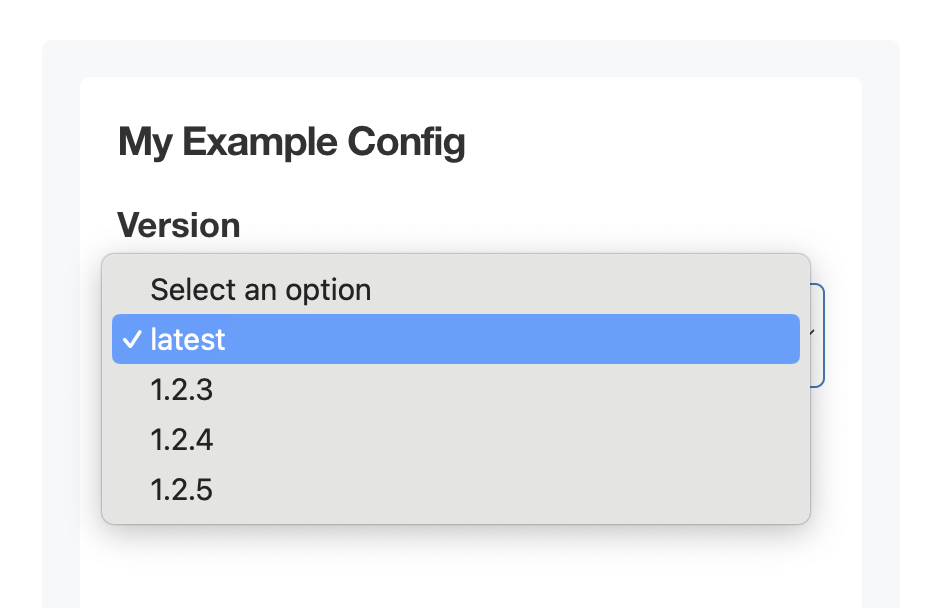
The `dropdown` item type includes one or more nested items that display in a dropdown on the config screen. Dropdowns are especially useful for displaying long lists of options. You can also use the [`radio`](#radio) item type to display radio buttons for items with shorter lists of options.
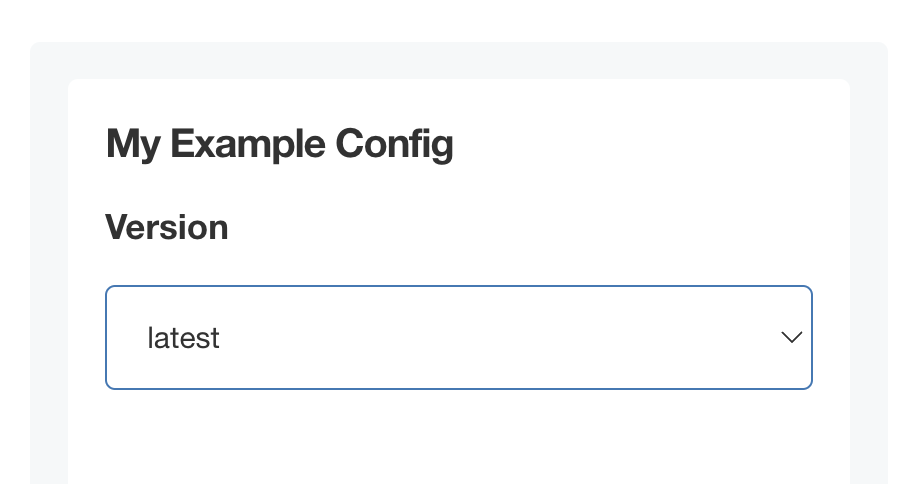
To set a default value for `dropdown` items, set the `default` field to the name of the target nested item.
```yaml
spec:
groups:
- name: example_settings
title: My Example Config
items:
- name: version
title: Version
default: version_latest
type: dropdown
items:
- name: version_latest
title: latest
- name: version_123
title: 1.2.3
- name: version_124
title: 1.2.4
- name: version_125
title: 1.2.5
```
 [View a larger version of this image](/images/config-screen-dropdown.png)
 [View a larger version of this image](/images/config-screen-dropdown-open.png)
### `file`
A `file` is a special type of form field that renders an [``](https://www.w3schools.com/tags/tag_input.asp) HTML element.
The form field captures only the file contents, not the filename.
See the [`ConfigOptionData`](template-functions-config-context#configoptiondata) template function for examples on how to use the file contents in your application.
```yaml
- name: certs
title: TLS Configuration
items:
- name: tls_private_key_file
title: Private Key
type: file
- name: tls_certificate_file
title: Certificate
type: file
```
[View a larger version of this image](/images/config-screen-dropdown-open.png)
### `file`
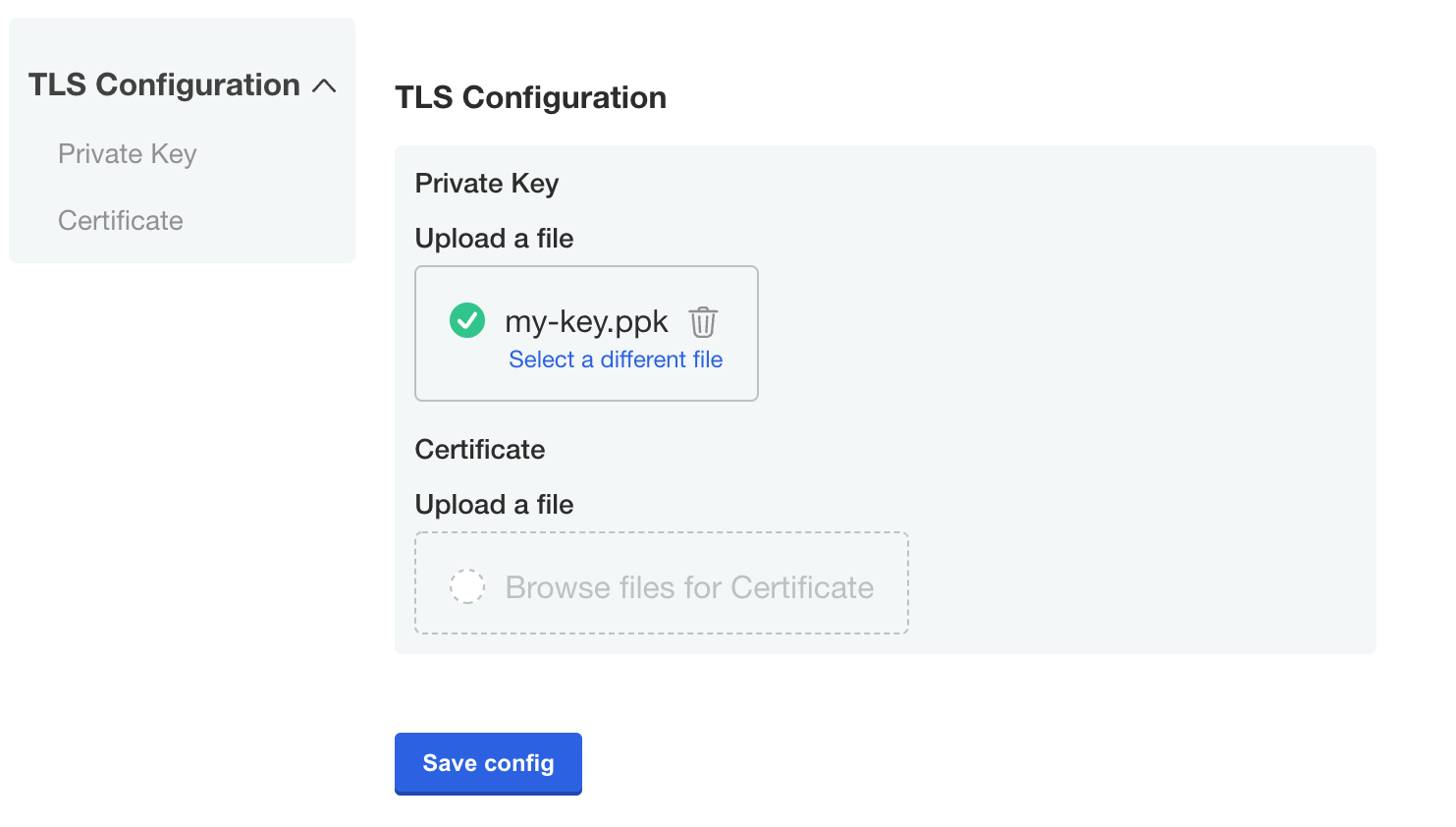
A `file` is a special type of form field that renders an [``](https://www.w3schools.com/tags/tag_input.asp) HTML element.
The form field captures only the file contents, not the filename.
See the [`ConfigOptionData`](template-functions-config-context#configoptiondata) template function for examples on how to use the file contents in your application.
```yaml
- name: certs
title: TLS Configuration
items:
- name: tls_private_key_file
title: Private Key
type: file
- name: tls_certificate_file
title: Certificate
type: file
```
 [View a larger version of this image](/images/config-screen-file.png)
### `heading`
The `heading` type allows you to display a group heading as a sub-element within a group.
This is useful when you would like to use a config group to group items together, but still separate the items visually.
```yaml
- name: ldap_settings
title: LDAP Server Settings
items:
...
- name: ldap_schema
type: heading
title: LDAP schema
...
```
[View a larger version of this image](/images/config-screen-file.png)
### `heading`
The `heading` type allows you to display a group heading as a sub-element within a group.
This is useful when you would like to use a config group to group items together, but still separate the items visually.
```yaml
- name: ldap_settings
title: LDAP Server Settings
items:
...
- name: ldap_schema
type: heading
title: LDAP schema
...
```
 [View a larger versio of this image](/images/config-screen-heading.png)
### `label`
The `label` type allows you to display an input label.
```yaml
- name: email
title: Email
items:
- name: email-address
title: Email Address
type: text
- name: description
type: label
title: "Note: The system will send you an email every hour."
```
[View a larger versio of this image](/images/config-screen-heading.png)
### `label`
The `label` type allows you to display an input label.
```yaml
- name: email
title: Email
items:
- name: email-address
title: Email Address
type: text
- name: description
type: label
title: "Note: The system will send you an email every hour."
```
 [View a larger version of this image](/images/config-screen-label.png)
### `password`
The `password` type is a text field that hides the character input.
```yaml
- name: password_text
title: Password Text
type: password
value: '{{repl RandomString 10}}'
```
[View a larger version of this image](/images/config-screen-label.png)
### `password`
The `password` type is a text field that hides the character input.
```yaml
- name: password_text
title: Password Text
type: password
value: '{{repl RandomString 10}}'
```
 [View a larger version of this image](/images/config-screen-password.png)
### `radio`
> Introduced in KOTS v1.114.0
The `radio` item type includes one or more nested items that display as radio buttons on the config screen. Radio buttons are especially useful for displaying short lists of options. You can also use the [`dropdown`](#dropdown) item type for items with longer lists of options.
To set a default value for `radio` items, set the `default` field to the name of the target nested item.
```yaml
spec:
groups:
- name: example_settings
title: My Example Config
items:
- name: authentication_type
title: Authentication Type
default: authentication_type_anonymous
type: radio
items:
- name: authentication_type_anonymous
title: Anonymous
- name: authentication_type_password
title: Password
```
### `select_one` (Deprecated)
:::important
The `select_one` item type is deprecated. Use [`radio`](#radio) instead.
:::
`select_one` items must contain nested items. The nested items display as radio buttons on the config screen.
Use the `name` field of a `select_one` item with Replicated template functions in the Config context (such as ConfigOption or ConfigOptionEquals) to return the user-selected option.
For example, if the user selects the **Password** option for the `select_one` item in the following example, then the template function `'{{repl ConfigOption "authentication_type"}}'` returns `authentication_type_password`. For more information about working with template functions in the Config context, see [Config Context](/reference/template-functions-config-context).
```yaml
spec:
groups:
- name: example_settings
title: My Example Config
description: Configuration to serve as an example for creating your own.
items:
- name: authentication_type
title: Authentication Type
default: authentication_type_anonymous
type: select_one
items:
- name: authentication_type_anonymous
title: Anonymous
- name: authentication_type_password
title: Password
```
[View a larger version of this image](/images/config-screen-password.png)
### `radio`
> Introduced in KOTS v1.114.0
The `radio` item type includes one or more nested items that display as radio buttons on the config screen. Radio buttons are especially useful for displaying short lists of options. You can also use the [`dropdown`](#dropdown) item type for items with longer lists of options.
To set a default value for `radio` items, set the `default` field to the name of the target nested item.
```yaml
spec:
groups:
- name: example_settings
title: My Example Config
items:
- name: authentication_type
title: Authentication Type
default: authentication_type_anonymous
type: radio
items:
- name: authentication_type_anonymous
title: Anonymous
- name: authentication_type_password
title: Password
```
### `select_one` (Deprecated)
:::important
The `select_one` item type is deprecated. Use [`radio`](#radio) instead.
:::
`select_one` items must contain nested items. The nested items display as radio buttons on the config screen.
Use the `name` field of a `select_one` item with Replicated template functions in the Config context (such as ConfigOption or ConfigOptionEquals) to return the user-selected option.
For example, if the user selects the **Password** option for the `select_one` item in the following example, then the template function `'{{repl ConfigOption "authentication_type"}}'` returns `authentication_type_password`. For more information about working with template functions in the Config context, see [Config Context](/reference/template-functions-config-context).
```yaml
spec:
groups:
- name: example_settings
title: My Example Config
description: Configuration to serve as an example for creating your own.
items:
- name: authentication_type
title: Authentication Type
default: authentication_type_anonymous
type: select_one
items:
- name: authentication_type_anonymous
title: Anonymous
- name: authentication_type_password
title: Password
```
 ### `text`
A `text` input field allows users to enter a string value.
Optionally, all additional properties are available for this input type.
```yaml
- name: example_text_input
title: Example Text Input
type: text
```
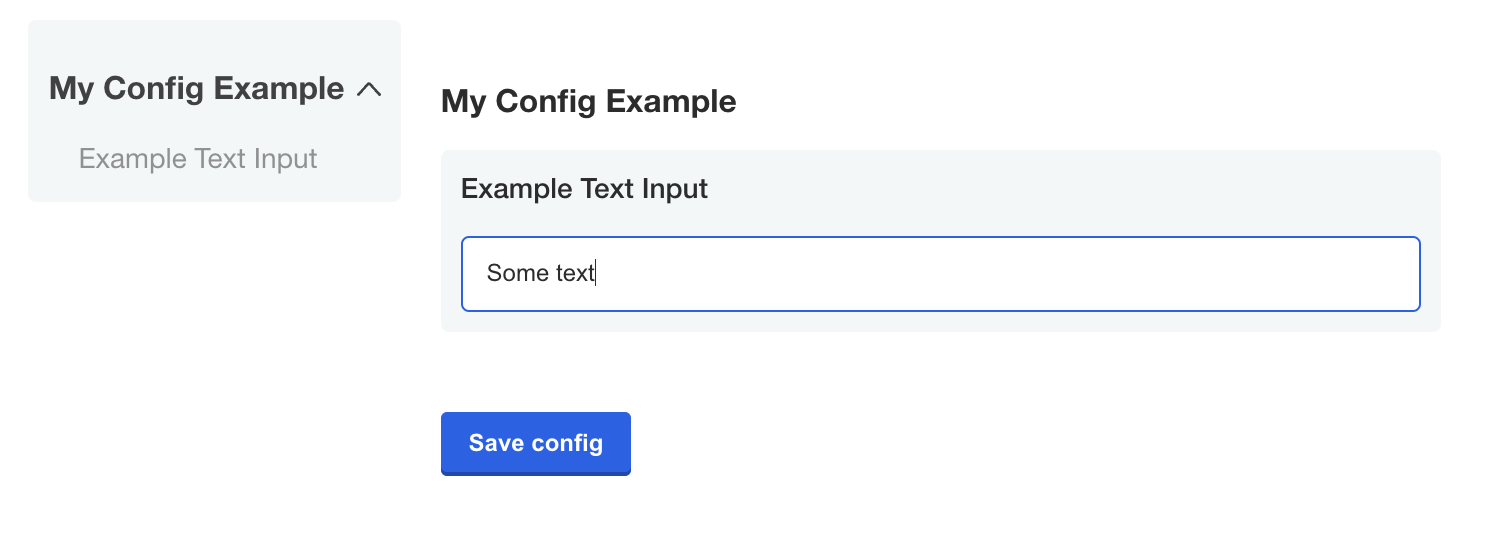
### `text`
A `text` input field allows users to enter a string value.
Optionally, all additional properties are available for this input type.
```yaml
- name: example_text_input
title: Example Text Input
type: text
```
 :::important
Do not store secrets or passwords in `text` items because they are not encrypted or masked and can be accessed. Instead, use [`password`](#password) items.
:::
### `textarea`
A `textarea` items creates a multi-line text input for when users have to enter a sizeable amount of text.
```yaml
- name: custom_key
title: Set your secret key for your app
description: Paste in your Custom Key
items:
- name: key
title: Key
type: textarea
- name: hostname
title: Hostname
type: text
```
:::important
Do not store secrets or passwords in `text` items because they are not encrypted or masked and can be accessed. Instead, use [`password`](#password) items.
:::
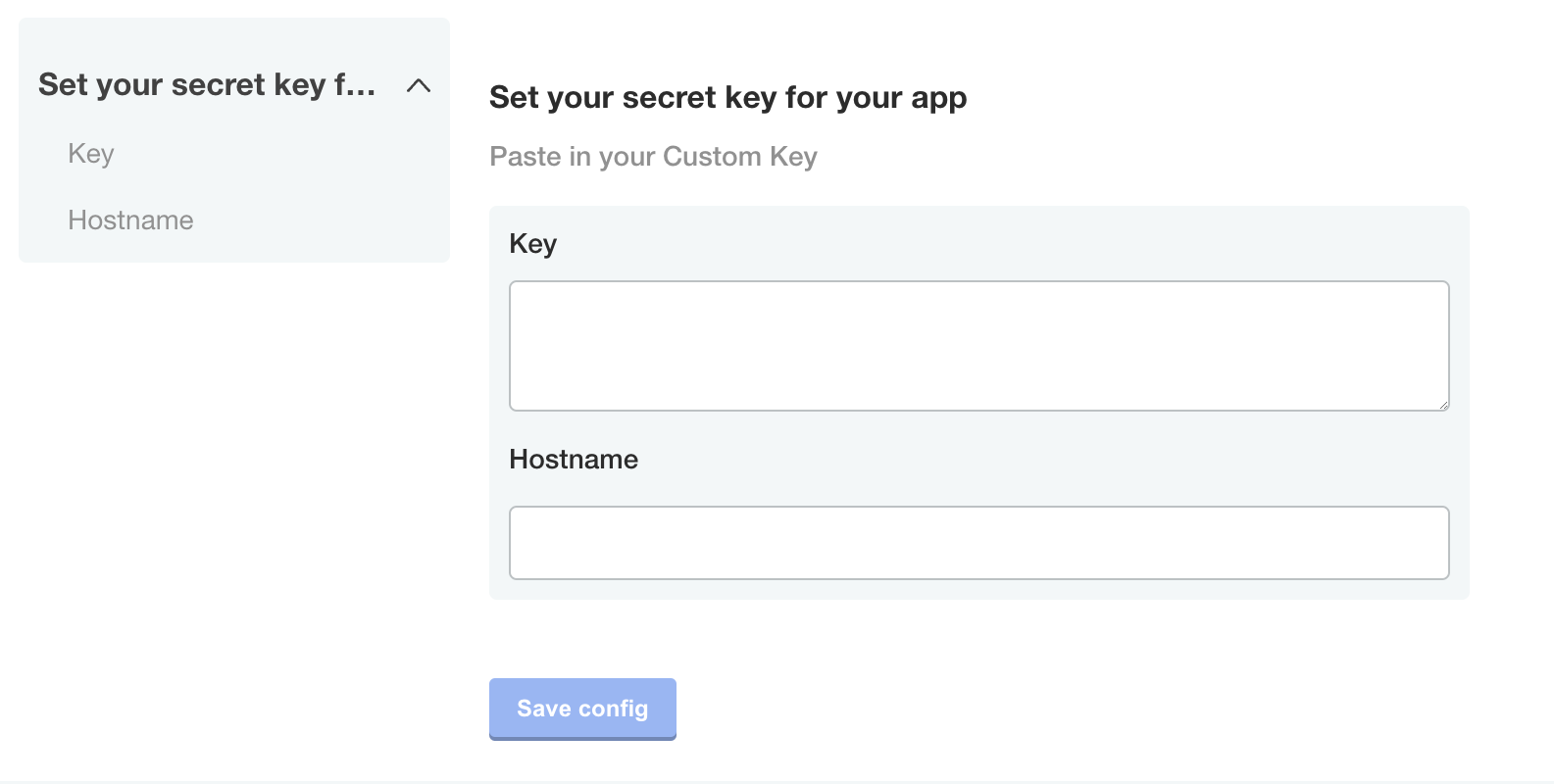
### `textarea`
A `textarea` items creates a multi-line text input for when users have to enter a sizeable amount of text.
```yaml
- name: custom_key
title: Set your secret key for your app
description: Paste in your Custom Key
items:
- name: key
title: Key
type: textarea
- name: hostname
title: Hostname
type: text
```
 ## Item properties
Items have a `name`, `title`, `type`, and other optional properties.
### `affix`
Affix items `left` or `right` to display them on the same line on the config screen.
Specify the `affix` field to all of the items in a particular group to preserve the line spacing and prevent the appearance of crowded text.
#### Example
```yaml
groups:
- name: example_settings
title: My Example Config
description: Configuration to serve as an example for creating your own.
items:
- name: username
title: Username
type: text
required: true
affix: left
- name: password
title: Password
type: password
required: true
affix: right
```
### `default`
Defines the default value for the config item. If the user does not provide a value for the item, the `default` value takes effect.
If the `default` value is not associated with a `password` type config item, then it appears as placeholder text on the config screen.
The installer reevaluates Go template functions in the `default` property each time the user changes their configuration settings.
#### Example
```yaml
- name: custom_key
title: Set your secret key for your app
description: Paste in your Custom Key
items:
- name: key
title: Key
type: text
value: ""
default: change me
```
## Item properties
Items have a `name`, `title`, `type`, and other optional properties.
### `affix`
Affix items `left` or `right` to display them on the same line on the config screen.
Specify the `affix` field to all of the items in a particular group to preserve the line spacing and prevent the appearance of crowded text.
#### Example
```yaml
groups:
- name: example_settings
title: My Example Config
description: Configuration to serve as an example for creating your own.
items:
- name: username
title: Username
type: text
required: true
affix: left
- name: password
title: Password
type: password
required: true
affix: right
```
### `default`
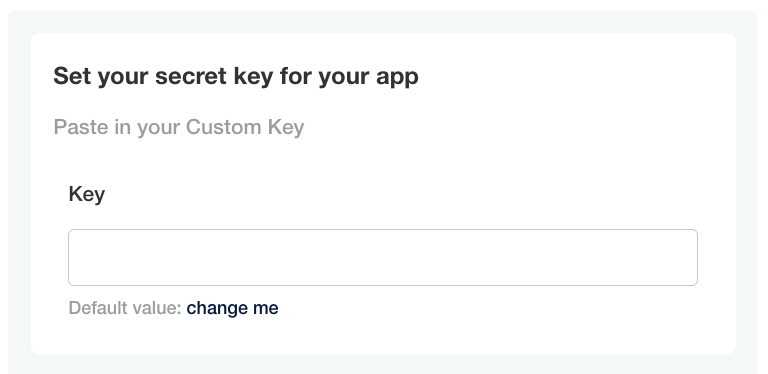
Defines the default value for the config item. If the user does not provide a value for the item, the `default` value takes effect.
If the `default` value is not associated with a `password` type config item, then it appears as placeholder text on the config screen.
The installer reevaluates Go template functions in the `default` property each time the user changes their configuration settings.
#### Example
```yaml
- name: custom_key
title: Set your secret key for your app
description: Paste in your Custom Key
items:
- name: key
title: Key
type: text
value: ""
default: change me
```
 [View a larger version of this image](/images/config-default.png)
### `help_text`
Displays a helpful message under the `title` for the config item on the config screen.
The property supports markdown syntax. For more information, see [Basic writing and formatting syntax](https://guides.github.com/features/mastering-markdown/) in the GitHub Docs.
#### Example
```yaml
- name: http_settings
title: HTTP Settings
items:
- name: http_enabled
title: HTTP Enabled
help_text: Check to enable the HTTP listener
type: bool
```
[View a larger version of this image](/images/config-default.png)
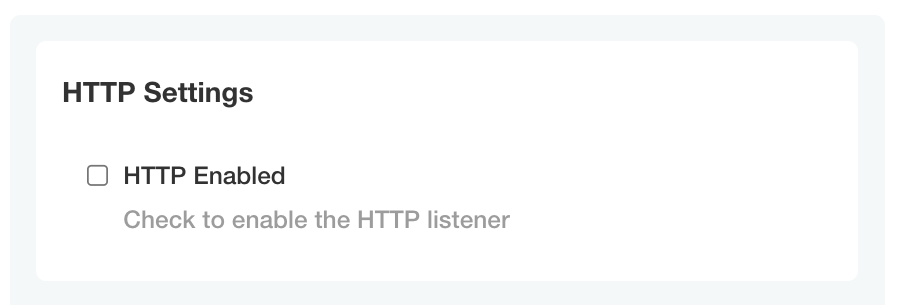
### `help_text`
Displays a helpful message under the `title` for the config item on the config screen.
The property supports markdown syntax. For more information, see [Basic writing and formatting syntax](https://guides.github.com/features/mastering-markdown/) in the GitHub Docs.
#### Example
```yaml
- name: http_settings
title: HTTP Settings
items:
- name: http_enabled
title: HTTP Enabled
help_text: Check to enable the HTTP listener
type: bool
```
 [View a larger version of this image](/images/config-help-text.png)
### `hidden`
Hidden items are not visible on the config screen.
When you assign a template function that generates a value to a `value` property, you can use the `readonly` and `hidden` properties to define whether or not the generated value is ephemeral or persistent between changes to the configuration settings for the application. For more information, see [RandomString](template-functions-static-context#randomstring) in _Static Context_.
#### Limitation
The `hidden` property doesn't support Go templating.
#### Example
```yaml
- name: secret_key
title: Secret Key
type: password
hidden: true
value: "{{repl RandomString 40}}"
```
### `name` (Required)
A unique identifier for the config item. Item names must be unique both within the group and across all groups. The item `name` is not displayed on the config screen.
Use the item `name` with Replicated template functions in the Config context (such as ConfigOption or ConfigOptionEquals) to return the value of the item. For more information, see [Config Context](/reference/template-functions-config-context).
#### Example
```yaml
- name: http_settings
title: HTTP Settings
items:
- name: http_enabled
title: HTTP Enabled
type: bool
```
### `readonly`
Readonly items display on the config screen and users cannot edit their value.
When you assign a template function that generates a value to a `value` property, you can use the `readonly` and `hidden` properties to define whether or not the generated value is ephemeral or persistent between changes to the configuration settings for the application. For more information, see [RandomString](template-functions-static-context#randomstring) in _Static Context_.
#### Limitation
The `readonly` property doesn't support Go templating.
#### Example
```yaml
- name: key
title: Key
type: text
value: ""
default: change me
- name: unique_key
title: Unique Key
type: text
value: "{{repl RandomString 20}}"
readonly: true
```
[View a larger version of this image](/images/config-help-text.png)
### `hidden`
Hidden items are not visible on the config screen.
When you assign a template function that generates a value to a `value` property, you can use the `readonly` and `hidden` properties to define whether or not the generated value is ephemeral or persistent between changes to the configuration settings for the application. For more information, see [RandomString](template-functions-static-context#randomstring) in _Static Context_.
#### Limitation
The `hidden` property doesn't support Go templating.
#### Example
```yaml
- name: secret_key
title: Secret Key
type: password
hidden: true
value: "{{repl RandomString 40}}"
```
### `name` (Required)
A unique identifier for the config item. Item names must be unique both within the group and across all groups. The item `name` is not displayed on the config screen.
Use the item `name` with Replicated template functions in the Config context (such as ConfigOption or ConfigOptionEquals) to return the value of the item. For more information, see [Config Context](/reference/template-functions-config-context).
#### Example
```yaml
- name: http_settings
title: HTTP Settings
items:
- name: http_enabled
title: HTTP Enabled
type: bool
```
### `readonly`
Readonly items display on the config screen and users cannot edit their value.
When you assign a template function that generates a value to a `value` property, you can use the `readonly` and `hidden` properties to define whether or not the generated value is ephemeral or persistent between changes to the configuration settings for the application. For more information, see [RandomString](template-functions-static-context#randomstring) in _Static Context_.
#### Limitation
The `readonly` property doesn't support Go templating.
#### Example
```yaml
- name: key
title: Key
type: text
value: ""
default: change me
- name: unique_key
title: Unique Key
type: text
value: "{{repl RandomString 20}}"
readonly: true
```
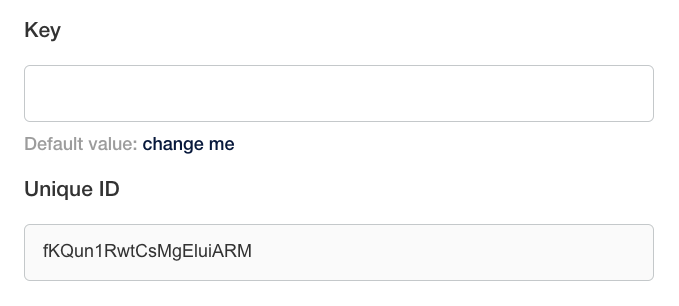 [View a larger version of this image](/images/config-readonly.png)
### `recommended`
Displays a Recommended tag for the config item on the config screen.
#### Limitations
* The `recommended` property doesn't support Go templating.
* Embedded Cluster v3 doesn't support the `recommended` property
#### Example
```yaml
- name: recommended_field
title: My recommended field
type: bool
default: "0"
recommended: true
```
[View a larger version of this image](/images/config-readonly.png)
### `recommended`
Displays a Recommended tag for the config item on the config screen.
#### Limitations
* The `recommended` property doesn't support Go templating.
* Embedded Cluster v3 doesn't support the `recommended` property
#### Example
```yaml
- name: recommended_field
title: My recommended field
type: bool
default: "0"
recommended: true
```
 [View a larger version of this image](/images/config-recommended-item.png)
### `required`
Displays a Required tag for the config item on the config screen. A required item prevents the application from starting until it has a value.
#### Limitation
The `required` property doesn't support Go templating.
#### Example
```yaml
- name: custom_key
title: Set your secret key for your app
description: Paste in your Custom Key
items:
- name: key
title: Key
type: text
value: ""
default: change me
required: true
```
[View a larger version of this image](/images/config-recommended-item.png)
### `required`
Displays a Required tag for the config item on the config screen. A required item prevents the application from starting until it has a value.
#### Limitation
The `required` property doesn't support Go templating.
#### Example
```yaml
- name: custom_key
title: Set your secret key for your app
description: Paste in your Custom Key
items:
- name: key
title: Key
type: text
value: ""
default: change me
required: true
```
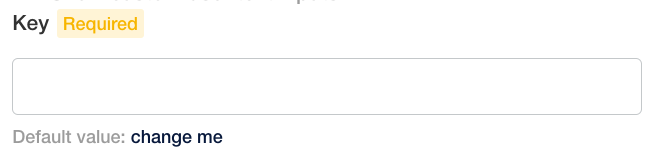 [View a larger version of this image](/images/config-required-item.png)
### `title` (Required)
The title of the config item that displays on the config screen.
#### Example
```yaml
- name: http_settings
title: HTTP Settings
items:
- name: http_enabled
title: HTTP Enabled
help_text: Check to enable the HTTP listener
type: bool
```
[View a larger version of this image](/images/config-required-item.png)
### `title` (Required)
The title of the config item that displays on the config screen.
#### Example
```yaml
- name: http_settings
title: HTTP Settings
items:
- name: http_enabled
title: HTTP Enabled
help_text: Check to enable the HTTP listener
type: bool
```
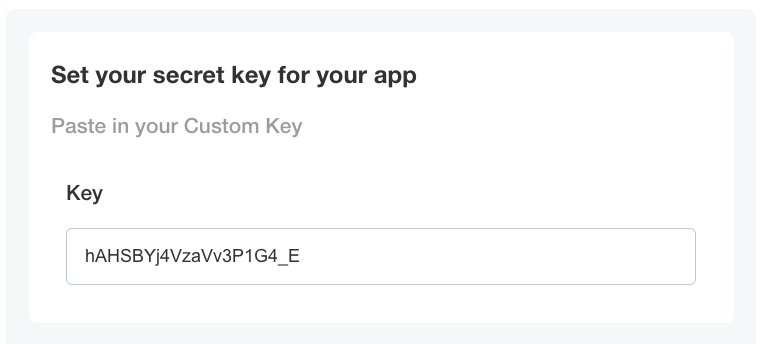 [View a larger version of this image](/images/config-value-randomstring.png)
### `when` {#when-item}
The `when` property denotes items that display on the config screen only when a condition evaluates to true. When the condition evaluates to false, the item does not display.
This lets you conditionally show or hide fields so your end customers only see the options that are relevant to them.
You can use Go template functions to create conditional statements. Replicated provides a set of Go template functions that you can use to evaluate conditions like the user's environment, their license entitlements, and their previous configuration choices. For more information, see [About Replicated Template Functions](/reference/template-functions-about).
:::note
`when` is a property of both groups and items. See [Group Properties > `when`](/reference/custom-resource-config#when) above.
:::
#### Requirements
* The `when` property accepts the following types of values:
* Booleans
* Strings that match "true", "True", "false", or "False"
* For the `when` property to evaluate to true, the values compared in the conditional statement must match exactly without quotes
- Do not apply `when` to items nested under a `radio`, `dropdown`, or `select_one` item. To conditionally show or hide `radio`, `dropdown`, or `select_one` items, apply the `when` property to the item itself.
#### Example
Display the `database_host` and `database_password` items only when the user selects `external` for the `db_type` item:
```yaml
- name: database_settings_group
title: Database Settings
items:
- name: db_type
title: Database Type
type: radio
default: external
items:
- name: external
title: External
- name: embedded
title: Embedded DB
- name: database_host
title: Database Hostname
type: text
when: repl{{ (ConfigOptionEquals "db_type" "external")}}
- name: database_password
title: Database Password
type: password
when: repl{{ (ConfigOptionEquals "db_type" "external")}}
```
[View a larger version of this image](/images/config-value-randomstring.png)
### `when` {#when-item}
The `when` property denotes items that display on the config screen only when a condition evaluates to true. When the condition evaluates to false, the item does not display.
This lets you conditionally show or hide fields so your end customers only see the options that are relevant to them.
You can use Go template functions to create conditional statements. Replicated provides a set of Go template functions that you can use to evaluate conditions like the user's environment, their license entitlements, and their previous configuration choices. For more information, see [About Replicated Template Functions](/reference/template-functions-about).
:::note
`when` is a property of both groups and items. See [Group Properties > `when`](/reference/custom-resource-config#when) above.
:::
#### Requirements
* The `when` property accepts the following types of values:
* Booleans
* Strings that match "true", "True", "false", or "False"
* For the `when` property to evaluate to true, the values compared in the conditional statement must match exactly without quotes
- Do not apply `when` to items nested under a `radio`, `dropdown`, or `select_one` item. To conditionally show or hide `radio`, `dropdown`, or `select_one` items, apply the `when` property to the item itself.
#### Example
Display the `database_host` and `database_password` items only when the user selects `external` for the `db_type` item:
```yaml
- name: database_settings_group
title: Database Settings
items:
- name: db_type
title: Database Type
type: radio
default: external
items:
- name: external
title: External
- name: embedded
title: Embedded DB
- name: database_host
title: Database Hostname
type: text
when: repl{{ (ConfigOptionEquals "db_type" "external")}}
- name: database_password
title: Database Password
type: password
when: repl{{ (ConfigOptionEquals "db_type" "external")}}
```
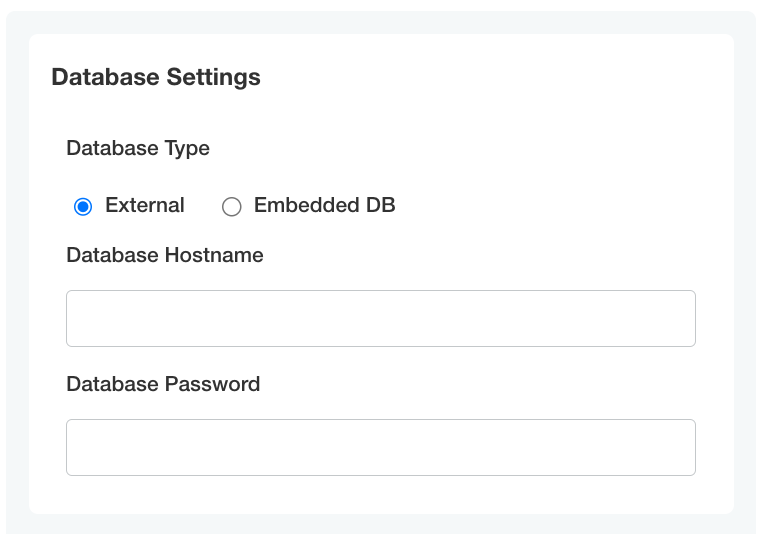 [View a larger version of this image](/images/config-when-enabled.png)
 [View a larger version of this image](/images/config-when-disabled.png)
### `validation`
Use the `validation` property to validate an item's value and specify custom validation rules that determine whether the value is valid.
You can use regex to validate whether an item's value matches the provided regular expression `pattern`. The regex pattern should be of the [RE2 regular expression](https://github.com/google/re2/wiki/Syntax) type and can validate the `text`, `textarea`, `password`, and `file` field types.
Based on specified validation rules, the item is validated and a validation message is returned if the validation rule is not satisfied. A default message is returned if there is an empty validation message.
The validation rules are as follows:
- An item is validated only when its value is not empty.
- Items of types `text`, `textarea`, `password`, and `file` are validated, but `repeatable` items are not validated.
- If an item is marked as `hidden` or if its `when` condition is set to `false`, the item is not validated.
- If a group `when` condition is set to `false`, the items in the group are not validated.
#### Limitation
The `validation` property doesn't support Go templating.
#### Example
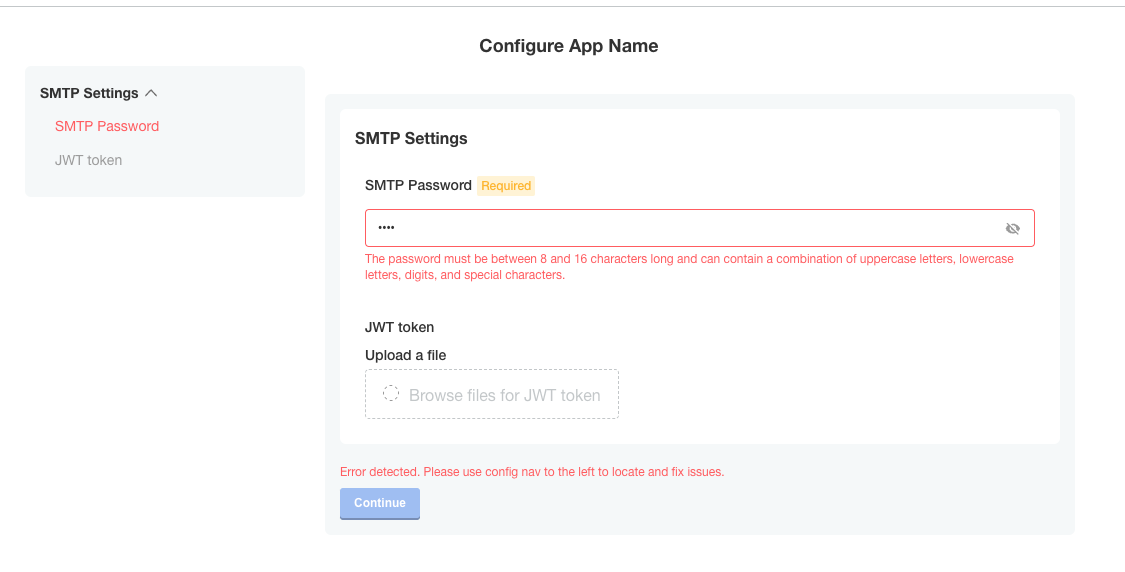
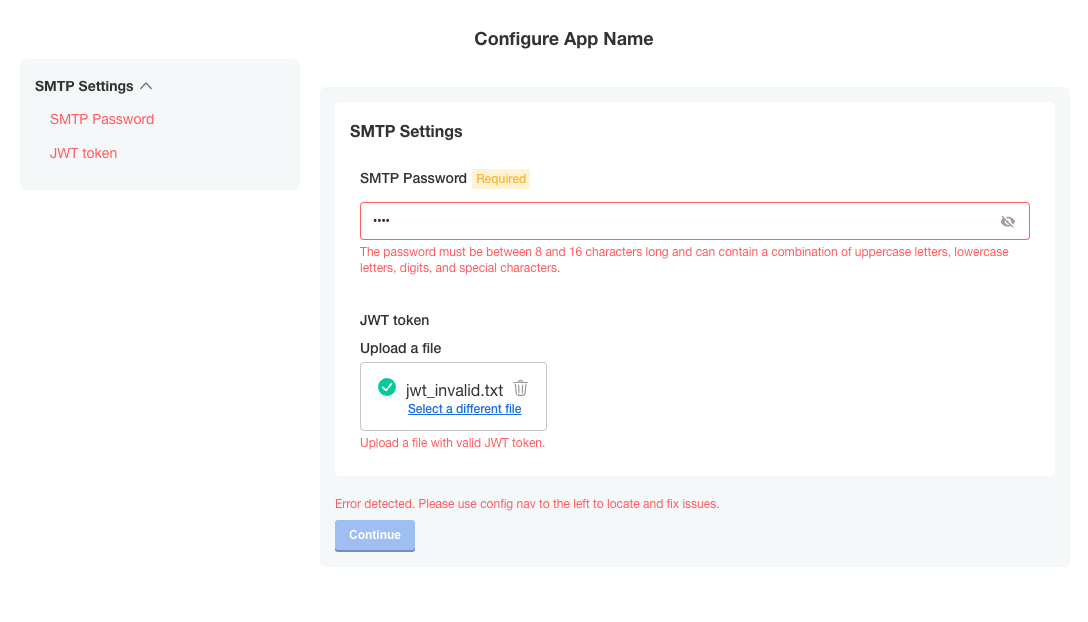
Validates and returns if `password` value is not matching the regex.
The `jwt_token` file content is only validated if the file is uploaded since it is optional.
```
- name: smtp-settings
title: SMTP Settings
- name: smtp_password
title: SMTP Password
type: password
required: true
validation:
regex:
pattern: ^(?:[\w@#$%^&+=!*()_\-{}[\]:;"'<>,.?\/|]){8,16}$
message: The password must be between 8 and 16 characters long and can contain a combination of uppercase letters, lowercase letters, digits, and special characters.
- name: jwt_token
title: JWT token
type: file
validation:
regex:
pattern: ^[A-Za-z0-9-_]+\\.[A-Za-z0-9-_]+\\.[A-Za-z0-9-_]*$
message: Upload a file with valid JWT token.
```
[View a larger version of this image](/images/config-when-disabled.png)
### `validation`
Use the `validation` property to validate an item's value and specify custom validation rules that determine whether the value is valid.
You can use regex to validate whether an item's value matches the provided regular expression `pattern`. The regex pattern should be of the [RE2 regular expression](https://github.com/google/re2/wiki/Syntax) type and can validate the `text`, `textarea`, `password`, and `file` field types.
Based on specified validation rules, the item is validated and a validation message is returned if the validation rule is not satisfied. A default message is returned if there is an empty validation message.
The validation rules are as follows:
- An item is validated only when its value is not empty.
- Items of types `text`, `textarea`, `password`, and `file` are validated, but `repeatable` items are not validated.
- If an item is marked as `hidden` or if its `when` condition is set to `false`, the item is not validated.
- If a group `when` condition is set to `false`, the items in the group are not validated.
#### Limitation
The `validation` property doesn't support Go templating.
#### Example
Validates and returns if `password` value is not matching the regex.
The `jwt_token` file content is only validated if the file is uploaded since it is optional.
```
- name: smtp-settings
title: SMTP Settings
- name: smtp_password
title: SMTP Password
type: password
required: true
validation:
regex:
pattern: ^(?:[\w@#$%^&+=!*()_\-{}[\]:;"'<>,.?\/|]){8,16}$
message: The password must be between 8 and 16 characters long and can contain a combination of uppercase letters, lowercase letters, digits, and special characters.
- name: jwt_token
title: JWT token
type: file
validation:
regex:
pattern: ^[A-Za-z0-9-_]+\\.[A-Za-z0-9-_]+\\.[A-Za-z0-9-_]*$
message: Upload a file with valid JWT token.
```
 [View a larger version of this image](/images/regex_password_validation_error.png)
 [View a larger version of this image](/images/regex_file_validation_error.png)
## Repeatable Items
A repeatable config item copies a YAML array entry or YAML document for as many values as are provided. Any number of values can be added to a repeatable item to generate additional copies.
To make an item repeatable, set `repeatable` to true:
```yaml
- name: ports_group
items:
- name: serviceport
title: Service Port
type: text
repeatable: true
```
Repeatable items do not use the `default` or `value` fields, but instead a `valuesByGroup` field.
`valuesByGroup` must have an entry for the parent Config Group name, with all of the default `key:value` pairs nested in the group. The repeatable item requires at least one default entry:
```yaml
valuesByGroup:
ports_group:
port-default-1: "80"
```
### Limitations
* Repeatable items work only for text, textarea, and file types.
* Repeatable item names must only consist of lower case alphanumeric characters.
* Repeatable items are only supported for Kubernetes manifests, not Helm charts.
### Template targets
Repeatable items require that you provide at least one `template`. The `template` defines a YAML target in the manifest to duplicate for each repeatable item.
Required fields for a template target are `apiVersion`, `kind`, and `name`.
`namespace` is an optional template target field to match a YAML document's `metadata.namespace` property when the same filename appears in multiple namespaces.
The installer duplicates the entire YAML node at the target, including nested fields.
The `yamlPath` field of the `template` must denote index position for arrays using square brackets. For example, `spec.ports[0]` selects the first port entry for duplication. The installer appends all duplicate YAML to the final array in the `yamlPath`.
`yamlPath` must end with an array.
**Example:**
```yaml
templates:
- apiVersion: v1
kind: Service
name: my-service
namespace: my-app
yamlPath: 'spec.ports[0]'
```
If the `yamlPath` field is not present, the installer replaces the entire YAML document matching the `template` with a copy for each repeatable item entry. The `metadata.name` field of the new document reflects the repeatable item `key`.
### Templating
Use the delimiters `repl[[ .itemName ]]` or `[[repl .itemName ]]` for repeat items. Place these delimiters anywhere inside the `yamlPath` target node:
```yaml
- port: repl{{ ConfigOption "[[repl .serviceport ]]" | ParseInt }}
name: '[[repl .serviceport ]]'
```
This repeatable templating is not compatible with sprig templating functions. Use it to insert repeatable `keys` into the manifest. You can nest repeatable templating inside Replicated config templating.
### Ordering
The installer processes repeatable templates before config template rendering.
The installer processes repeatable items in order of the template targets in the Config Spec file. Effectively, this ordering is from the top of the Config Spec, by Config Group, by Config Item, and then by template target.
```yaml
- name: ports_group
items:
- name: serviceport
title: Service Port
type: text
repeatable: true
templates:
- apiVersion: v1 #processed first
kind: Service
name: my-service
namespace: my-app
yamlPath: 'spec.ports[0]'
- apiVersion: v1 #processed second
kind: Service
name: my-service
namespace: my-app
{other item properties ...}
- name: other_ports
title: Other Service Port
type: text
repeatable: true
templates:
- apiVersion: v1 #processed third
kind: Service
name: my-other-service
namespace: my-app
{other item properties ...}
- name: deployments
items:
- name: deployment-name
title: Deployment Names
type: text
repeatable: true
templates:
- apiVersion: apps/v1 #processed fourth
kind: Deployment
name: my-deployment
namespace: my-app
{other item properties ...}
```
### Repeatable examples
In these examples, the release includes the default service port "80". When you add port 443 as an additional port on the config screen, The installer stores it in the ConfigValues file.
#### Repeatable item example for a yamlPath
**Config custom resource manifest file:**
```yaml
- name: ports_group
items:
- name: serviceport
title: Service Port
type: text
repeatable: true
templates:
- apiVersion: v1
kind: Service
name: my-service
namespace: my-app
yamlPath: spec.ports[0]
valuesByGroup:
ports_group:
port-default-1: "80"
```
**Config values:**
```yaml
apiVersion: kots.io/v1beta1
kind: ConfigValues
metadata:
name: example_app
spec:
values:
port-default-1:
repeatableItem: serviceport
value: "80"
serviceport-8jdn2bgd:
repeatableItem: serviceport
value: "443"
```
**Template manifest:**
```yaml
apiVersion: v1
kind: Service
metadata:
name: my-service
namespace: my-app
spec:
type: NodePort
ports:
- port: repl{{ ConfigOption "[[repl .serviceport ]]" | ParseInt }}
name: '[[repl .serviceport ]]'
selector:
app: repeat_example
component: my-deployment
```
**After repeatable config processing:**
**Note**: This phase is internal to configuration rendering for KOTS. This example is only provided to further explain the templating process.*
```yaml
apiVersion: v1
kind: Service
metadata:
name: my-service
namespace: my-app
spec:
type: NodePort
ports:
- port: repl{{ ConfigOption "port-default-1" | ParseInt }}
name: 'port-default-1'
- port: repl{{ ConfigOption "serviceport-8jdn2bgd" | ParseInt }}
name: 'serviceport-8jdn2bgd'
selector:
app: repeat_example
component: my-deployment
```
**Resulting manifest:**
```yaml
apiVersion: v1
kind: Service
metadata:
name: my-service
namespace: my-app
spec:
type: NodePort
ports:
- port: 80
name: port-default-1
- port: 443
name: serviceport-8jdn2bgd
selector:
app: repeat_example
component: my-deployment
```
#### Repeatable Item Example for an Entire Document
**Config spec:**
```yaml
- name: ports_group
items:
- name: serviceport
title: Service Port
type: text
repeatable: true
templates:
- apiVersion: v1
kind: Service
name: my-service
namespace: my-app
valuesByGroup:
ports_group:
port-default-1: "80"
```
**Config values:**
```yaml
apiVersion: kots.io/v1beta1
kind: ConfigValues
metadata:
name: example_app
spec:
values:
port-default-1:
repeatableItem: serviceport
value: "80"
serviceport-8jdn2bgd:
repeatableItem: serviceport
value: "443"
```
**Template manifest:**
```yaml
apiVersion: v1
kind: Service
metadata:
name: my-service
namespace: my-app
spec:
type: NodePort
ports:
- port: repl{{ ConfigOption "[[repl .serviceport ]]" | ParseInt }}
selector:
app: repeat_example
component: repl[[ .serviceport ]]
```
**After repeatable config processing:**
**Note**: This phase is internal to configuration rendering for KOTS. This example is only provided to further explain the templating process.*
```yaml
apiVersion: v1
kind: Service
metadata:
name: port-default-1
namespace: my-app
spec:
type: NodePort
ports:
- port: repl{{ ConfigOption "port-default-1" | ParseInt }}
selector:
app: repeat_example
component: port-default-1
---
apiVersion: v1
kind: Service
metadata:
name: serviceport-8jdn2bgd
namespace: my-app
spec:
type: NodePort
ports:
- port: repl{{ ConfigOption "serviceport-8jdn2bgd" | ParseInt }}
selector:
app: repeat_example
component: serviceport-8jdn2bgd
```
**Resulting manifest:**
```yaml
apiVersion: v1
kind: Service
metadata:
name: port-default-1
namespace: my-app
spec:
type: NodePort
ports:
- port: 80
selector:
app: repeat_example
component: port-default-1
---
apiVersion: v1
kind: Service
metadata:
name: serviceport-8jdn2bgd
namespace: my-app
spec:
type: NodePort
ports:
- port: 443
selector:
app: repeat_example
component: serviceport-8jdn2bgd
```
[View a larger version of this image](/images/regex_file_validation_error.png)
## Repeatable Items
A repeatable config item copies a YAML array entry or YAML document for as many values as are provided. Any number of values can be added to a repeatable item to generate additional copies.
To make an item repeatable, set `repeatable` to true:
```yaml
- name: ports_group
items:
- name: serviceport
title: Service Port
type: text
repeatable: true
```
Repeatable items do not use the `default` or `value` fields, but instead a `valuesByGroup` field.
`valuesByGroup` must have an entry for the parent Config Group name, with all of the default `key:value` pairs nested in the group. The repeatable item requires at least one default entry:
```yaml
valuesByGroup:
ports_group:
port-default-1: "80"
```
### Limitations
* Repeatable items work only for text, textarea, and file types.
* Repeatable item names must only consist of lower case alphanumeric characters.
* Repeatable items are only supported for Kubernetes manifests, not Helm charts.
### Template targets
Repeatable items require that you provide at least one `template`. The `template` defines a YAML target in the manifest to duplicate for each repeatable item.
Required fields for a template target are `apiVersion`, `kind`, and `name`.
`namespace` is an optional template target field to match a YAML document's `metadata.namespace` property when the same filename appears in multiple namespaces.
The installer duplicates the entire YAML node at the target, including nested fields.
The `yamlPath` field of the `template` must denote index position for arrays using square brackets. For example, `spec.ports[0]` selects the first port entry for duplication. The installer appends all duplicate YAML to the final array in the `yamlPath`.
`yamlPath` must end with an array.
**Example:**
```yaml
templates:
- apiVersion: v1
kind: Service
name: my-service
namespace: my-app
yamlPath: 'spec.ports[0]'
```
If the `yamlPath` field is not present, the installer replaces the entire YAML document matching the `template` with a copy for each repeatable item entry. The `metadata.name` field of the new document reflects the repeatable item `key`.
### Templating
Use the delimiters `repl[[ .itemName ]]` or `[[repl .itemName ]]` for repeat items. Place these delimiters anywhere inside the `yamlPath` target node:
```yaml
- port: repl{{ ConfigOption "[[repl .serviceport ]]" | ParseInt }}
name: '[[repl .serviceport ]]'
```
This repeatable templating is not compatible with sprig templating functions. Use it to insert repeatable `keys` into the manifest. You can nest repeatable templating inside Replicated config templating.
### Ordering
The installer processes repeatable templates before config template rendering.
The installer processes repeatable items in order of the template targets in the Config Spec file. Effectively, this ordering is from the top of the Config Spec, by Config Group, by Config Item, and then by template target.
```yaml
- name: ports_group
items:
- name: serviceport
title: Service Port
type: text
repeatable: true
templates:
- apiVersion: v1 #processed first
kind: Service
name: my-service
namespace: my-app
yamlPath: 'spec.ports[0]'
- apiVersion: v1 #processed second
kind: Service
name: my-service
namespace: my-app
{other item properties ...}
- name: other_ports
title: Other Service Port
type: text
repeatable: true
templates:
- apiVersion: v1 #processed third
kind: Service
name: my-other-service
namespace: my-app
{other item properties ...}
- name: deployments
items:
- name: deployment-name
title: Deployment Names
type: text
repeatable: true
templates:
- apiVersion: apps/v1 #processed fourth
kind: Deployment
name: my-deployment
namespace: my-app
{other item properties ...}
```
### Repeatable examples
In these examples, the release includes the default service port "80". When you add port 443 as an additional port on the config screen, The installer stores it in the ConfigValues file.
#### Repeatable item example for a yamlPath
**Config custom resource manifest file:**
```yaml
- name: ports_group
items:
- name: serviceport
title: Service Port
type: text
repeatable: true
templates:
- apiVersion: v1
kind: Service
name: my-service
namespace: my-app
yamlPath: spec.ports[0]
valuesByGroup:
ports_group:
port-default-1: "80"
```
**Config values:**
```yaml
apiVersion: kots.io/v1beta1
kind: ConfigValues
metadata:
name: example_app
spec:
values:
port-default-1:
repeatableItem: serviceport
value: "80"
serviceport-8jdn2bgd:
repeatableItem: serviceport
value: "443"
```
**Template manifest:**
```yaml
apiVersion: v1
kind: Service
metadata:
name: my-service
namespace: my-app
spec:
type: NodePort
ports:
- port: repl{{ ConfigOption "[[repl .serviceport ]]" | ParseInt }}
name: '[[repl .serviceport ]]'
selector:
app: repeat_example
component: my-deployment
```
**After repeatable config processing:**
**Note**: This phase is internal to configuration rendering for KOTS. This example is only provided to further explain the templating process.*
```yaml
apiVersion: v1
kind: Service
metadata:
name: my-service
namespace: my-app
spec:
type: NodePort
ports:
- port: repl{{ ConfigOption "port-default-1" | ParseInt }}
name: 'port-default-1'
- port: repl{{ ConfigOption "serviceport-8jdn2bgd" | ParseInt }}
name: 'serviceport-8jdn2bgd'
selector:
app: repeat_example
component: my-deployment
```
**Resulting manifest:**
```yaml
apiVersion: v1
kind: Service
metadata:
name: my-service
namespace: my-app
spec:
type: NodePort
ports:
- port: 80
name: port-default-1
- port: 443
name: serviceport-8jdn2bgd
selector:
app: repeat_example
component: my-deployment
```
#### Repeatable Item Example for an Entire Document
**Config spec:**
```yaml
- name: ports_group
items:
- name: serviceport
title: Service Port
type: text
repeatable: true
templates:
- apiVersion: v1
kind: Service
name: my-service
namespace: my-app
valuesByGroup:
ports_group:
port-default-1: "80"
```
**Config values:**
```yaml
apiVersion: kots.io/v1beta1
kind: ConfigValues
metadata:
name: example_app
spec:
values:
port-default-1:
repeatableItem: serviceport
value: "80"
serviceport-8jdn2bgd:
repeatableItem: serviceport
value: "443"
```
**Template manifest:**
```yaml
apiVersion: v1
kind: Service
metadata:
name: my-service
namespace: my-app
spec:
type: NodePort
ports:
- port: repl{{ ConfigOption "[[repl .serviceport ]]" | ParseInt }}
selector:
app: repeat_example
component: repl[[ .serviceport ]]
```
**After repeatable config processing:**
**Note**: This phase is internal to configuration rendering for KOTS. This example is only provided to further explain the templating process.*
```yaml
apiVersion: v1
kind: Service
metadata:
name: port-default-1
namespace: my-app
spec:
type: NodePort
ports:
- port: repl{{ ConfigOption "port-default-1" | ParseInt }}
selector:
app: repeat_example
component: port-default-1
---
apiVersion: v1
kind: Service
metadata:
name: serviceport-8jdn2bgd
namespace: my-app
spec:
type: NodePort
ports:
- port: repl{{ ConfigOption "serviceport-8jdn2bgd" | ParseInt }}
selector:
app: repeat_example
component: serviceport-8jdn2bgd
```
**Resulting manifest:**
```yaml
apiVersion: v1
kind: Service
metadata:
name: port-default-1
namespace: my-app
spec:
type: NodePort
ports:
- port: 80
selector:
app: repeat_example
component: port-default-1
---
apiVersion: v1
kind: Service
metadata:
name: serviceport-8jdn2bgd
namespace: my-app
spec:
type: NodePort
ports:
- port: 443
selector:
app: repeat_example
component: serviceport-8jdn2bgd
```